Usage Logs Guide
Learn about Usage Logs, the Usage Log Server, and FaceTec's Usage Log Policy.
To learn how Usage Logs should be stored, see Usage Log Server - Storage Directory Configuration.
To diagnose Usage Log Server Behavior, see Diagnosing Usage Log Server Behaviors.
Usage Log Policy
FaceTec must receive all anonymous, Non-PII Usage Logs from all instances of Your FaceTec Server, with no exceptions.
Usage Logs must be gathered via automation and sent to FaceTec daily. FaceTec provides a Usage Log Server to make it easy to upload Usage Logs.
FaceTec checks Usage Logs for tampering, missing logs, and anomalies. If anything is detected, FaceTec will work with you to determine the source of the behavior.
Prerequisite for Production
Proper Usage Log Configuration is a prerequisite for Going to Production and must be verified by FaceTec before Production Encryption Keys can be issued. Once you are ready for FaceTec to check Your Usage Logs, send us a Support Request. FaceTec will take a look at Your Account and issue FaceTec Encryption Keys immediately if everything is set up correctly.
Usage Log Proxy Server
FaceTec's Usage Log Server is a Proxy with the Source Code available for Your Team to review. Your Team's FaceTec Server Instances send logs to the Usage Log Server, which then aggregates the logs into Plain Text Logs in a single directory. Your Usage Log Server then relays the Aggregated Usage Logs to FaceTec's Servers (per FaceTec's Usage Log Policy Requirements).
Since it is required for Usage Logs to automatically be sent to FaceTec via the Usage Log Server, FaceTec recommends that Your Security Personnel configure the Usage Log Server like any other Proxy. Your Team is also encouraged to review the Usage Log Server Source Code and the Aggregated Plain Text Logs sent to FaceTec.
Location in the Server Package
The Usage Log Server is located in the FaceTec-Usage-Log-Server Directory of the FaceTec Server Package. The FaceTec-Server-Webservice/Docker-Deployment-Scripts Directory contains all of the Docker-Related Files and the run.sh script for deploying the Usage Log Server.
Running the Usage Log Server
The run.sh script launches the FaceTec Usage Log Server and the FaceTec Server Webservice side-by-side in separate containers. The run.sh script launches the FaceTec Usage Log Server first and waits for the Usage Log Server to begin running before it launches the FaceTec Server Webservice in a separate container.

Since both containers are running on the same machine, http://facetec_usage_log_server:3000* can be used to specify the Usage Log Server's Endpoint in the Server Webservice's config.yaml file
* Important Note: Because the Usage Log Server and Server Webservice are in separate containers, localhost (i.e. http://localhost:3000) cannot be used to resolve the Usage Log Server's Endpoint from within the Server Webservice.
Your Team can also run Multiple Usage Log Servers to provide a High-Availability Environment.
Usage Log Server Health Check
Once the Usage Log Server is running, you can use the /health endpoint to check the Server Status. This is the same endpoint that Docker Compose uses to determine if the Server Webservice can be launched.
Uploading Usage Log Files
Your Usage Log Server uploads logs to the FaceTec Network using one of these endpoints:
- HTTPS (Port 443) - usage-logs.facetec.com (Dynamic IP Address) -- Recommended
- SFTP (Port 22) - logs.facetec.com (54.70.182.147 - Static IP Address)
High Availability
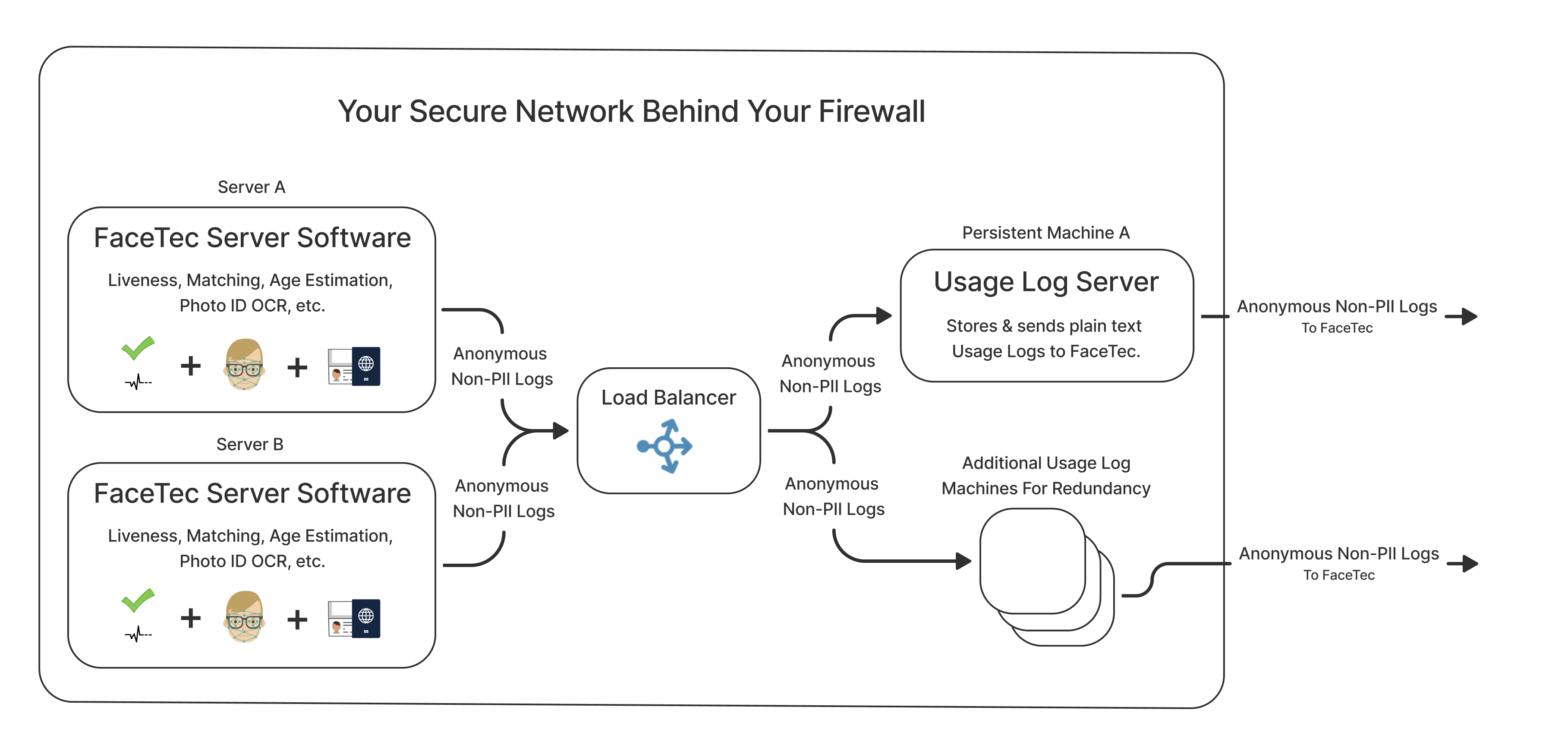
SSL Certificate
The Usage Log Server supports SSL. The SSL Certificate must be signed and valid. You will need to install and configure the SSL Certificate on the Node Server.
Usage Log Transfer Security
HTTPS and SFTP are widely used, secure, and mature technologies. FaceTec uses AWS Transfer Family as its provider of SFTP services and AWS CloudFront as its HTTPS provider. AWS Transfer Family is PCI-DSS and GDPR compliant, and HIPAA eligible. The service is also SOC 1, 2, and 3 compliant.
Configuring Usage Log Upload
HTTPS
A HTTPS key is automatically generated for Your Application and can be found in the "Configure Usage Logs" tab on the "Account Info and Encryption Keys" Page. If you are downloading the FaceTec Server with the Configuration Wizard, then this key will be configured automatically. If you are downloading the FaceTec Server manually without the Configuration Wizard, then you must replace httpsApiKey in the Usage Log Server's config.yml file with the httpsApiKey found on your account page.
Important Note: Unlike the Device and FaceTec Server Encryption Keys, the HTTPS key is not rotated. Once it is properly added to the config.yml file, it does not need to be updated or modified.
SFTP
Important Note: In Configuration Wizard, the SFTP Option will not be enabled until the public SSH Key has been uploaded to the "Configure Usage Logs" tab on the "Account Info and Encryption Keys" Page.
If you are unable to send Usage Logs via HTTPS, then you will need to send the Usage Logs via SFTP. Configuring SFTP Usage Logs involves creating your own SSH Keys, providing FaceTec with your public SSH Key, and configuring your Usage Log Server to use the private SSH Key you created.
First, you will need to generate Your Private and Public SSH Keys on Your Machine. Then, you will need to upload the Public SSH key in the "Configure Usage Logs" tab on the "Account Info and Encryption Keys" Page. Afterwards, select the SFTP option when downloading the FaceTec Server to have Your SFTP Username automatically configured in the Usage Log Server's Configuration File. Otherwise, you will need to add the SFTP Username manually. Finally, you must paste Your Private Key in the Usage Log Server's config.yml file.
Usage Log Files
The FaceTec Server will output the usage logs to the /home/facetec-usage-logs folder, which can be configured to a different location in the Server Package's docker-compose.yml file. The Usage Log File Name is unique per server.
Usage Log Files must be written to a persisted (non-ephemeral) file system so that FaceTec can upload any pending log data after an application restart. The use of an Ephemeral File System, such as a Temporary Disk or a Disk inside of a Virtualized Container (e.g. Docker) that has not been mapped to a Persisted Disk on the Host Machine, is thus prohibited. For more information on Usage Log Storage, see Usage Log Server - Storage Directory Configuration.
Usage Log File Size
| Number of Liveness Checks | 1,000 | 10,000 | 100,000 | 1 Million |
|---|---|---|---|---|
| Compressed Size (approx.) | 1 - 2 MB | 10 - 20 MB | 100 - 200 MB | 1 - 2 GB |
Important Notes:
- File sizes in this table are zipped and approximated. To determine your precise Usage Log File sizes, you will need to perform testing on your own system.
- Usage Log File sizes for this table were generated from calls to the Liveness Check API. Usage Log String and Usage Log File sizes may vary for Enrollments, 3D:3D Matching, ID Scans, 3D:2D Matching, and other APIs.
- Usage Logs are automatically compressed before they are saved in the FaceTec Server's /uploaded subfolder.
- Usage Logs are sent to FaceTec compressed.
Usage Log Retention
After Usage Logs have been processed, they can safely be removed from the /uploaded subfolder in the FaceTec Server. While the Usage Logs can be removed, FaceTec recommends that you do not delete these logs manually or with a Cron job. This introduces another variable into your System Architecture without providing much in terms of a benefit. For those concerned about the Memory/Storage of Usage Logs, FaceTec recommends relying on Automatic Usage Log Removal.
Automatic Usage Log Removal
Usage Logs are compressed by default and deleted after 60 days. This behavior is automatic and requires no configuration on the part of Developers.
If the Usage Log Server detects low disk space on the Server, then the Usage Logs will be deleted from the /uploaded directory, even if they are less than 60 days old.
Config.yml values
Some customer policies do not allow keys and passwords to be saved in code and configuration files. FaceTec recommends using environmental variables that can be replaced when the server is created. The majority of Infrastructure Services support Environmental Variables (Example: AWS Environmental Variables and Docker Environmental Variables).
The Usage Log Server Code is provided to help Security Professionals understand exactly what information is sent to FaceTec. However, making changes to the Source Code of the Usage Log Server is not supported.
Usage Log Contents
The FaceTec Server outputs one or more Log Lines per User Session or Function Call. All FaceTec Server Core Usage Logs must be sent to FaceTec. Altering the Usage Logs is not allowed.
Important Note: FaceTec's Usage Logs start with the string
FTLand end with the stringLTF. FaceTec considers these log lines the "Usage Logs", and these are the logs that must be sent to FaceTec. The FaceTec Server outputs other logs, but these are not required to send to FaceTec.
Logs are emitted for the FaceTec Server on each transaction to Standard Out (stdout) for maximum flexibility. By default, FaceTec writes these to Your Log Files, but you can use any Log Capture and Aggregation System to configure Your Backend Systems to capture and save data in the manner best befitting Your Infrastructure.
FaceTec Usage Logs do not contain Personally Identifiable Information (PII). Instead, FaceTec Usage Logs contain the following information:
Beginning of Log (Tag)
Machine ID (Unique Identifier of the FaceTec Server)
Server Session ID
Key Identifier (FaceTec Application Identifier)
Timestamps
Stat Signature
Installation ID of 3D FaceScan/Map 1 (Unique Identifier assigned when user installs Device SDK)
Installation ID of 3D FaceScan/Map 2 (Unique Identifier assigned when user installs Device SDK)
Session ID of 3D FaceScan/Map 1 (Unique GUID created at time of FaceScan creation)
Session ID of 3D FaceScan/Map 2 (Unique GUID created at time of FaceScan creation)
Transaction Type (3D Liveness Check, 3D:3D Matching, 3D Age Check, etc.)
FaceTec Server Version
FaceTec Server Version 3D FaceScan/Map 1 Created With
FaceTec Server Version 3D FaceScan/Map 2 Created With
3D FaceScan/Map 1 Platform Type (iOS/Android/Browser), or a flag to denote a 2D Image was used
3D FaceScan/Map 2 Platform Type (iOS/Android/Browser), or a flag to denote a 2D Image was used
3D FaceScan/Map 1 App/Package/Domain
3D FaceScan/Map 2 App/Package/Domain
3D FaceScan/Map 1 Device Version
3D FaceScan/Map 2 Device Version
3D FaceScan/Map 1 Liveness Result (Liveness Proven or Not Proven)
3D FaceScan/Map 2 Liveness Result (Liveness Proven or Not Proven)
3D FaceScan/Map 1 Anonymous Session Result Data
3D FaceScan/Map 2 Anonymous Session Result Data
Extra Result Info (Statuses, Flags, or Errors)
Success (Correlates to the success bool returned on most APIs)
End of Log (Tag)
The following is an example of the Usage Log Format for a 3D Liveness Check:FTL,A:[MACHINE ID],C:[Key IDENTIFIER],D:[TIMESTAMP],E:[STAT SIGNATURE],F:[INSTALLATION ID 1],H:[Session ID 1],J:[TRANSACTION TYPE (checkLiveness3D,match3D_3D,etc...)],K:[FACETEC SERVER VERSION],L:[FACETEC SERVER VERSION FOR 3D FACESCAN/MAP 1],N:[3D FACESCAN/MAP 1 TYPE (iOS/Android/Browser) OR A FLAG TO DENOTE 2D IMAGE WAS USED],P:[PACKAGE ID/BUNDLE ID/DOMAIN 1],T:[DEVICE SDK VERSION FOR 3D FACESCAN/MAP 1]V:[LIVENESS RESULT FOR 3D FACESCAN/MAP 1],X:[ANONYMOUS SESSION RESULT DATA 1],R:[EXTRA RESULT INFO],S:[SUCCESSFUL OR NOT SUCCESSFUL],LTF
Please Note: Anonymous Session Result Data Strings DO NOT contain PII of any kind and are only used by FaceTec to analyze sessions in aggregate to ensure that the system is performing as it should and for billing purposes. The Usage Data is anonymous and does not contain Biometric Data, Image Data, Age/Gender/Ethnicity Data, or any Other PII. The Strings are an encoded and scrambled set of floating point number responses from over 60 algorithms that run on Liveness Sessions, Quality Checks, and Other Security-Related Checks. This includes Binary Flags and Enums related to the Security Checks that the FaceTec SDKs perform for Video Stream Tampering, Virtual Cameras, and Other Attack Vectors related to Camera Bypasses.
Usage Log Server Benchmarks
| Minimum Server CPU | Minimum Number of CPUs: 2 |
|---|---|
| Minimum Server Memory (RAM) | 1 GB |
| Baseline Cluster Specs | 2-core Intel Xeon Platinum 8000 Series CPU with 1 GB RAM |
| Liveness Check Throughput (Baseline Cluster) | ~1.5 Million Liveness Checks per day per server |