iOS Crash & Error Logs
Use this guide to learn more about how to gather and send iOS-related logs.
To learn how to gather and send Android-related logs, see Android Crash & Error Logs.
To learn how to gather and send Browser-related logs, see Browser Exception & Error Logs.
To learn how to gather and send Server-related logs, see Server Crashes & Errors.
Gather Logs & Crash Stacks from a Connected Device
- Open Xcode.
- Go to Windows > Devices and Simulators.
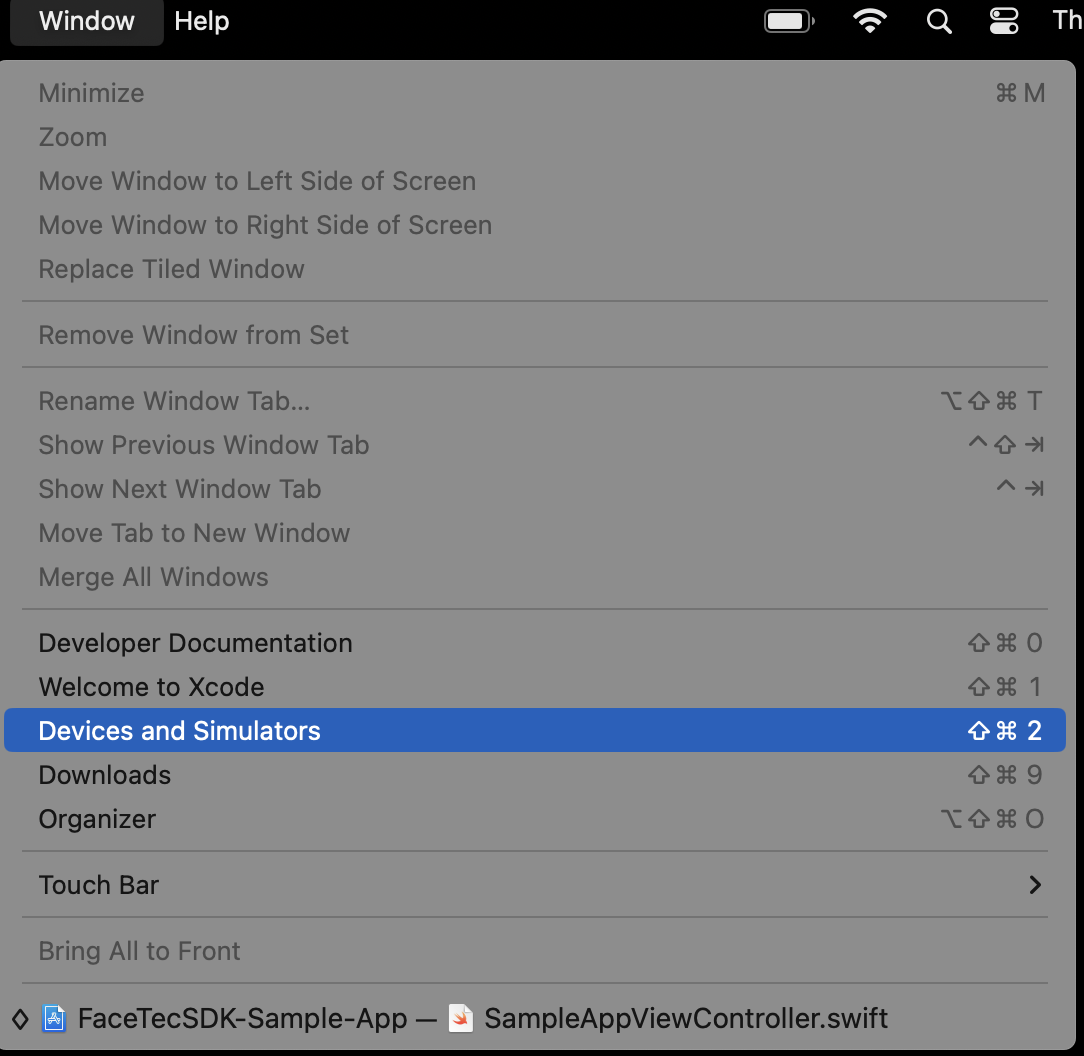
- Choose Your Device from the "Devices" tab.
- If a crash has already happened, click "View Device Logs" to see the crash events with their timestamps.
- If the device is connected and you want to reproduce the logs, click on "Open Console". Then, click the "Start" button to start capturing all logs from the device. When you are finished, you can then pause and export the logs.

Sharing Logs with FaceTec via a Support Request
Please collect the following information before Sending us a Support Request:
- The FaceTec iOS and FaceTec Server versions that experienced the behavior.
- The Device Models and iOS Versions that experienced the behavior.
- A zip file of the logs. Please include all of the logs in this zip file and not just the logs showing the behavior.