Android Crash & Error Logs
Use this guide to learn more about how to gather and send Android-related logs.
To learn how to gather and send iOS-related logs, see iOS Crash & Error Logs.
To learn how to gather and send Browser-related logs, see Browser Exception & Error Logs.
To learn how to gather and send Server-related logs, see Server Crashes & Errors.
Gathering Logs & Crash Stacks from a Connected Device
Using Logcat in Android Studio:
You can collect logs and crash stacks in Android Studio by using Logcat.
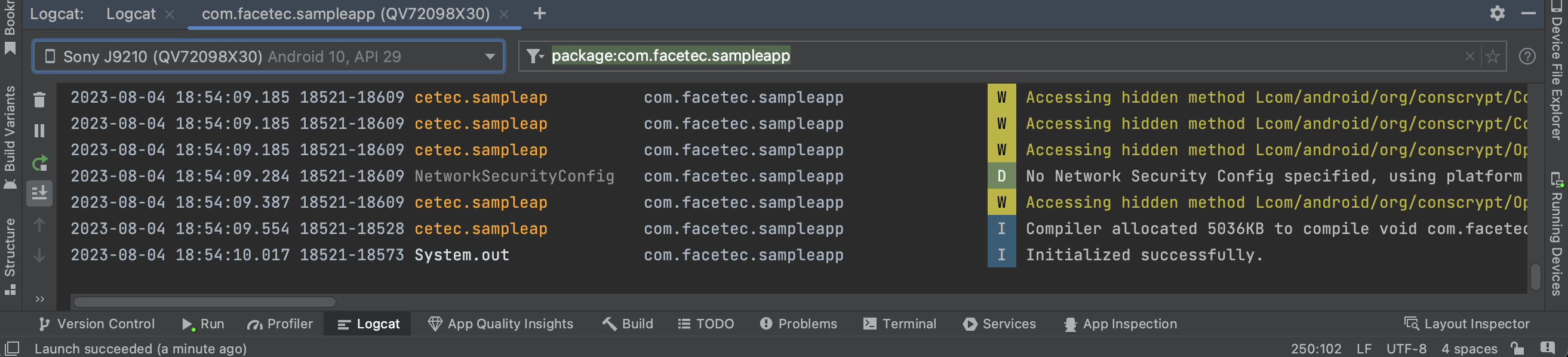
Note: The logs in Logcat are cleared and updated frequently, so you should connect the device to the debugger as soon as a crash is detected. Since Logcat tends to be oversaturated with device logs, we recommend filtering the logs by keywords.
Using Logcat in Command Line via Android Debug Bridge (ADB):
adb shell logcat > logOutput.txt
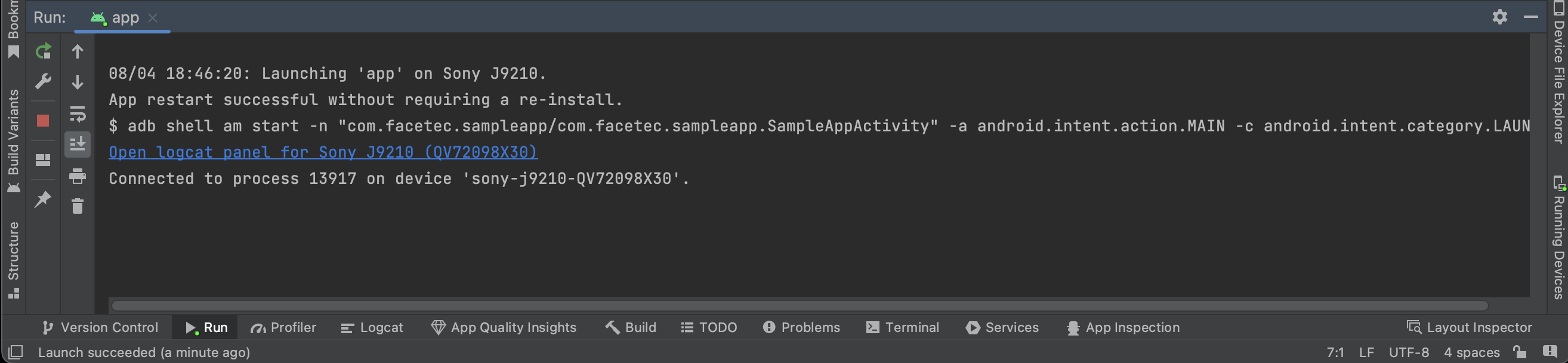
Using the "Run" tab in Android Studio:
For the "Run" tab to work, the device must be connected to Android Studio when Your App first starts running.
Sharing Logs with FaceTec via a Support Request
Please collect the following information before Sending us a Support Request:
- The FaceTec Android and FaceTec Server versions that experienced the behavior.
- The Device Models and Android Versions that experienced the behavior.
- A zip file of the logs. Please include all of the logs in this zip file and not just the logs showing the behavior.