Browser Exception & Error Logs
Use this guide to learn more about how to gather and send Browser-related logs.
To learn how to gather and send Android-related logs, see Android Crash & Error Logs.
To learn how to gather and send iOS-related logs, see iOS Crash & Error Logs.
To learn how to gather and send Server-related logs, see Server Crashes & Errors.
Gather Logs from a Desktop Browser
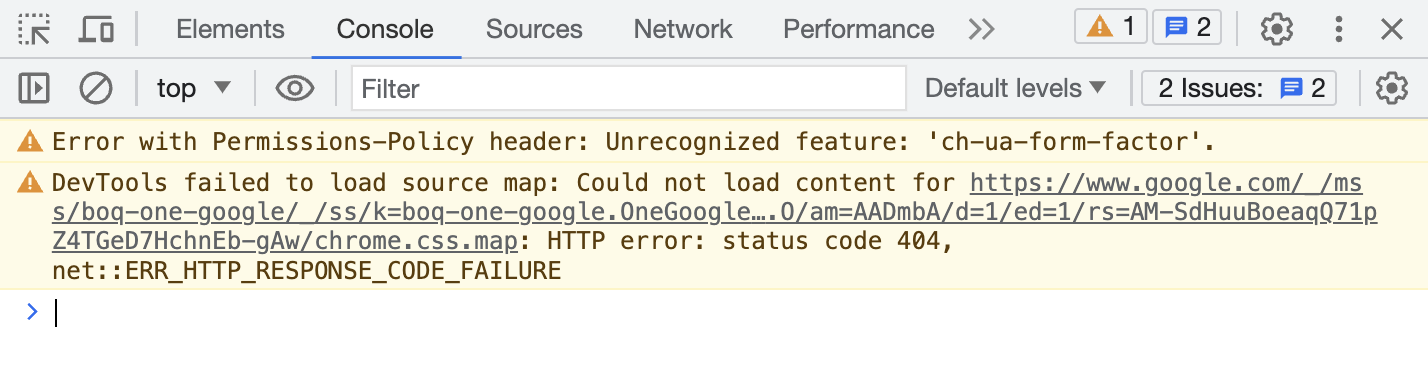
- Open your desktop browser.
- Open the developer tools window.
- Now you can access your logs from the "Console" tab.
Gather Logs from an iOS or Android Browser
For mobile Chromium-based browsers (Chrome, Opera, Edge, Samsung, etc.):
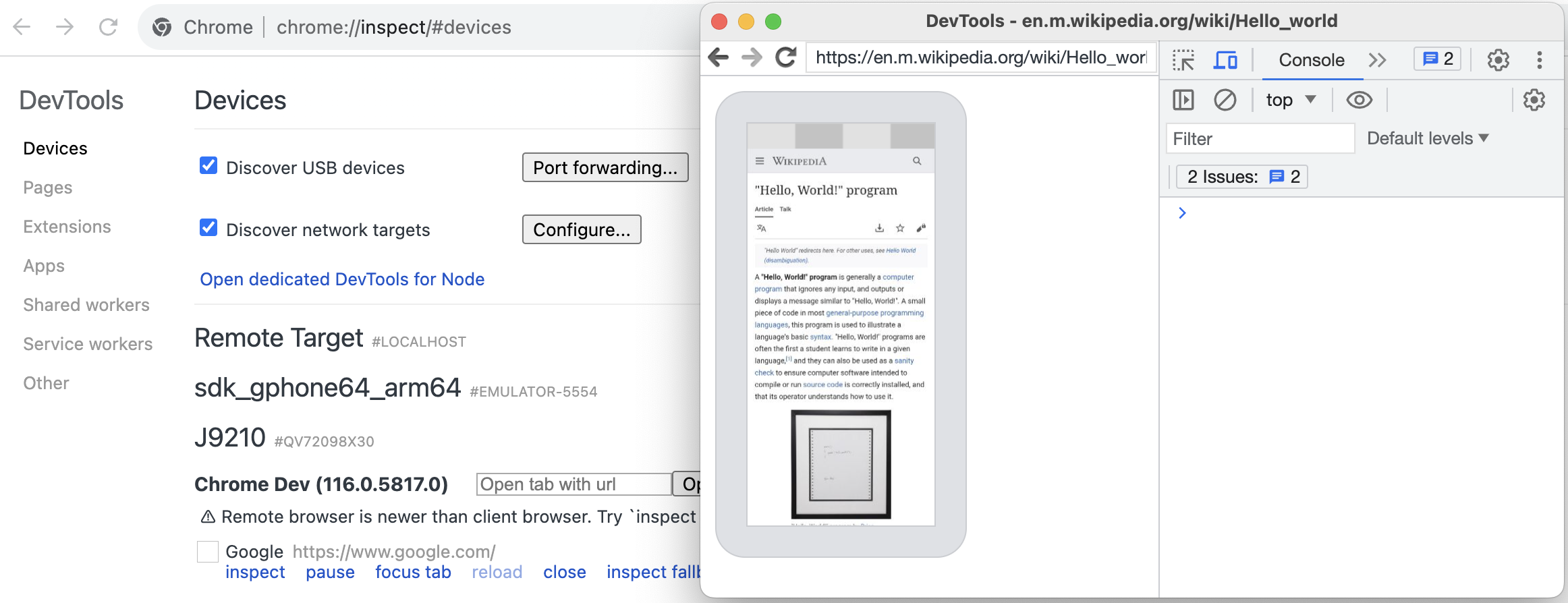
- Connect the device to your desktop and open your desktop's Chrome Browser.
- Go to chrome://inspect/#devices.
- Select the device's browser window that you want to examine and hit "inspect".
- Now you can access your logs from the "Console" tab.
For mobile Mozilla browsers (Firefox):
- Connect the device to your desktop and open up your desktop's Firefox Browser.
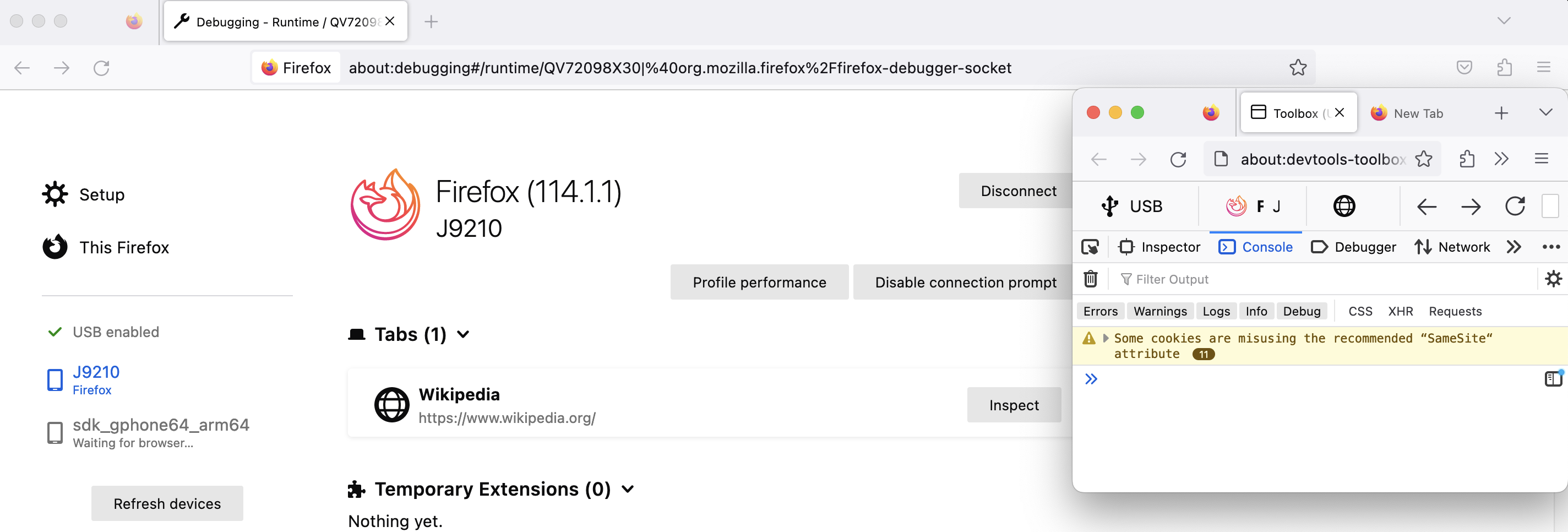
- Go to about:debugging#/setup.
- If shown, click "Enable USB Devices" on your desktop's Firefox Browser.
- On your device's Firefox Browser, go to Settings and enable "Remote debugging via USB".
- Select the device's browser window that you want to examine and hit "Inspect".
- Now you can access your logs from the "Console" tab.
For mobile Safari (iOS only):
- Connect you iOS device to you laptop and open your desktop's Safari browser.
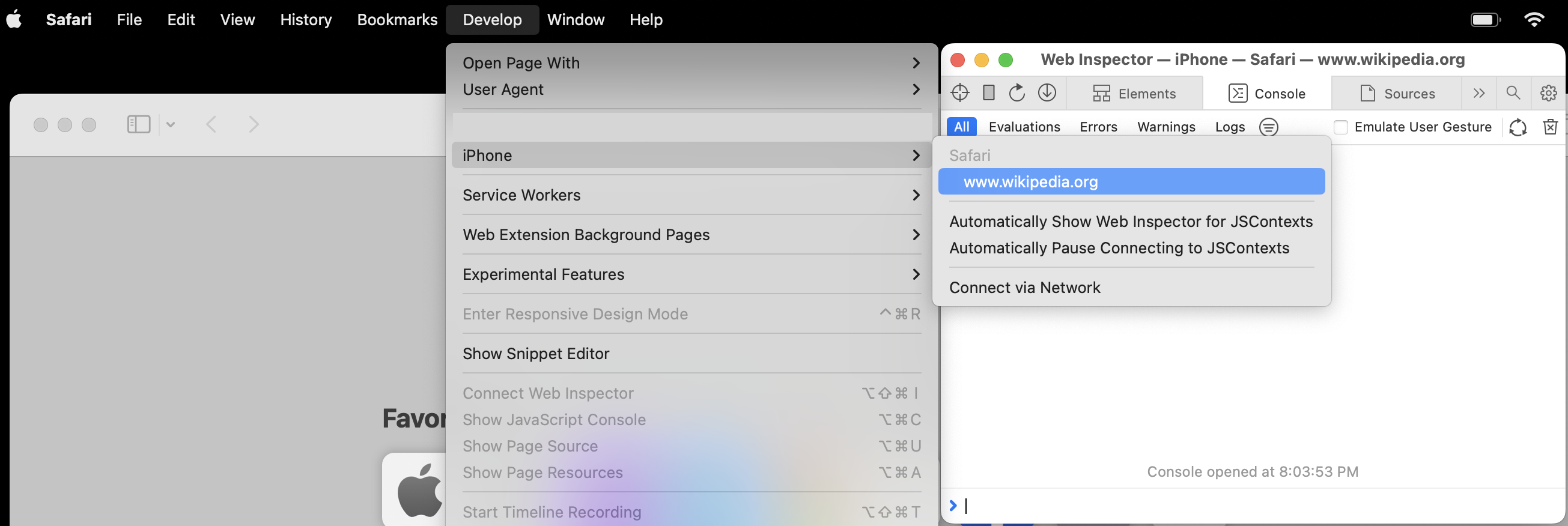
- If the Develop tab is not showing in your desktop Safari's menu bar, then go to Safari > Settings > Advanced and enable "Show Develop menu in menu bar".
- Go to Develop > YOUR_DEVICE. If the next tab shows "Enable Web Inspector on Device", then go to Settings > Safari > Advanced on your device and enable "Web Inspector."
- Select the device's browser window that you want to examine.
- Now you can access your logs from the "Console" tab.
Sharing Logs with FaceTec via a Support Request
Please collect the following information before Sending us a Support Request:
- Number of users and devices that experienced the behavior.
- List of the FaceTec Browser and FaceTec Server versions that experienced the behavior.
- List of Device Types and Operating Systems that experienced the behavior.
- List of Browsers that experienced the behavior.
- A shareable link to the zip file of logs. These logs should contain all of the logs for the users and devices that experienced the behavior, not just the logs demonstrating the behavior.