OCR Photo ID Text
FaceTec will OCR any Photo ID document (with the supported languages). While hundreds of ID types are already supported with Official OCR Templates, support for any Photo ID can be added with our OCR Template Creator. ID Scan & OCR, like all add-on features, are free to use and unlimited for FaceTec Customers & Partners. The OCR Template Creator allows you to Accept ANY ID Type for the languages we support.
See the List of the 2,300+ Officially Supported Photo IDs here.
To learn how the OCR data is parsed and organized, see Querying OCR, Barcode & NFC Data from documentData JSON.
KYC Dashboard Video Tour
OCR Template Creator
The OCR Template Creator allows you to create new or modify existing OCR Templates if you need to accept an ID type that is not on the List of the 2,300+ Officially Supported Photo IDs.
OCR Template Creator allows you to Accept ANY ID Document Type for the languages we support. To download existing OCR Templates or to create your own, visit the OCR Template Creator.
Important Note: Using the same field on the front and back is not supported. We recommend using a custom field if a field is on both the front and back of an ID.
OCR Localization
Dynamically configure the strings to be used on the User Confirmation Screen using the configureOCRLocalization API.
For the configureOCRLocalization API parameter, you may use any object that follows the same structure and key naming as the Template JSON file, "FaceTec_OCR_Customization.json", found in each Sample App's resources folder.
A working example of this API is in the SampleAppUtilities code.
Supported OCR Languages
Many languages are currently supported, and FaceTec is actively working on supporting additional languages.
Supported OCR Languages:
- Arabic Character Languages
- Armenian Character Languages
- Bengali Character Languages
- Chinese Character Languages
- Cyrillic Character Languages
- Georgian Character Languages
- Greek Character Languages
- Hebrew Character Languages
- Hindi Character Languages
- Hungarian Character Languages
- Japanese/Kanji Character Languages
- Korean Character Languages
- Latin Character Languages
- Nepalese Character Languages
- Norwegian Character Languages
- Polish Character Languages
- Portuguese Character Languages
- Spanish Character Languages
- Thai Character Languages
- Turkish Character Languages
- Vietnamese Character Languages
OCR Template Detection
The FaceTec Server uses AI to determine which template in the OCRTemplates directory matches the ID being scanned. Developers can limit which templates are chosen by removing their app's unsupported OCR Templates from the OCRTemplates directory.
If one or more OCR Templates have been loaded by the FaceTec SDK, then your log file will have the following log:
FaceTec OCR Template Configuration: FaceTec Server configured to use OCR Templates. Successfully loaded NUMBER_OF_TEMPLATES templates.If no OCR Templates have been loaded by the FaceTec SDK, then your log file will instead have the following log:
FaceTec OCR Template Configuration: FaceTec Server configured not to use OCR TemplatesImportant Distinction: Developers can also configure their apps to use Universal Photo ID Mode (No Template Mode). In this mode, the IDScan can still perform some of its authentication checks, even if there is no corresponding OCR Template in OCRTemplates.ID Scan Output - Real Examples
After each ID Scan, various types of images are provided on the /match-3d-2d-idscan API response. The photoIDFrontCrop and photoIDBackCrop properties contain cropped and de-skewed images of the Document Front and Back.
Driver's License: Front Example
Below is a real (blurred for privacy) example of the Front Driver's License Image returned in photoIDFrontCrop.

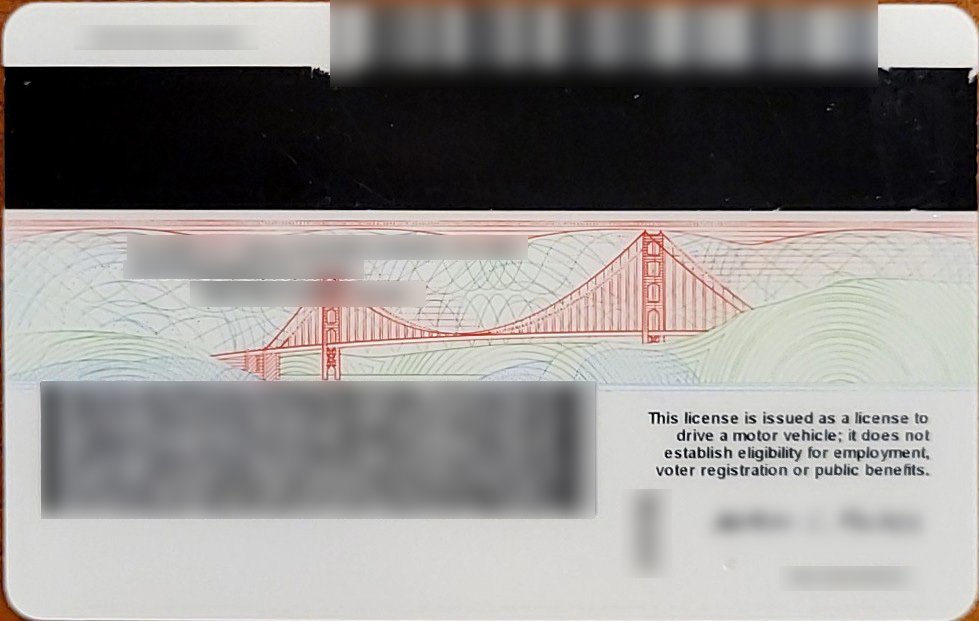
Driver's License: Back Example
Below is a real (blurred for privacy) example of the Back Driver's License Image returned in photoIDBackCrop.
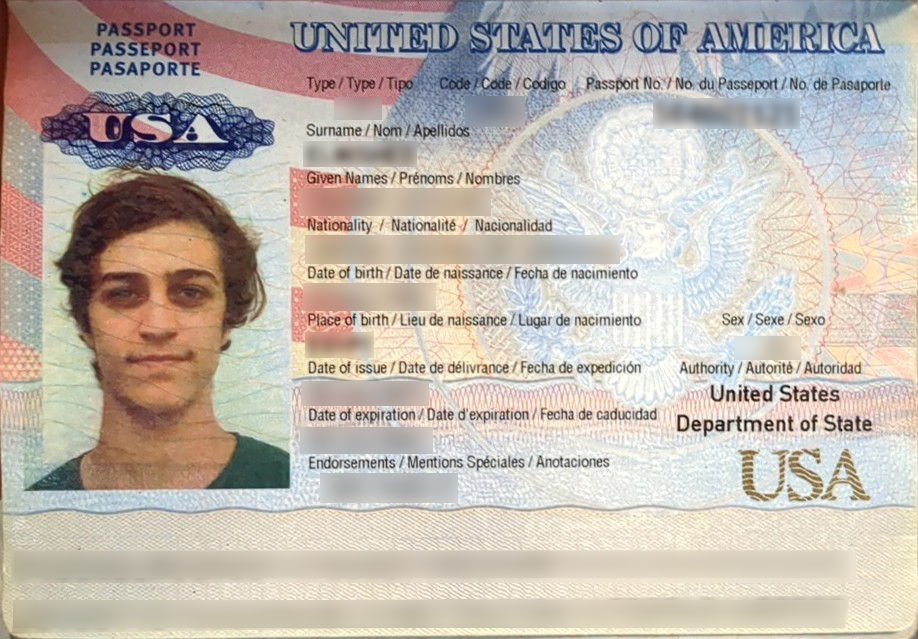
Passport Photo: Example
Below is a real (blurred for privacy) example of the Passport Image returned in photoIDFrontCrop.
Scan & OCR : Scan any Non-photo ID Document (Beta)
Documents without a photo, like a Power or Appliance Bill, can now be scanned. The FaceTec SDKs use OCR to parse important details from the document, such as the Recipient's Name, Account Number, and Address. Developers can create their own OCR Templates to specify the exact fields they need to be captured from a document.
Important Note: Anti-Spoofing and Anti-Tampering Checks are disabled for these types of documents. These documents are typically printed on paper and lack certain safeguards, which prevent the FaceTec SDK from making the necessary assessments with a high level of confidence.
Universal Photo ID Mode (No Template Mode)
Automatic Universal ID (No Template) Mode
When Scanning Documents, Users may provide IDs that are not recognized by the system. This can occur when the Scanned Document either does not have an OCR Template in OCRTemplates or when the Scanned Document is not supported. The FaceTec SDKs will automatically enter Universal ID (No Template) Mode when a Legible Document has been scanned 3 times in a row without a Matching OCR Template found. This behavior occurs so that Users may complete the ID Scan process without being blocked.
When Users progress through the ID Scan process in this manner, Universal ID Mode is enabled, and the flag didCompleteIDScanWithoutMatchingOCRTemplate is set to true, which can later be read as a part of the API Response Object. It should be noted that even if the ID Scan is completed in No Template Mode, OCR will still attempt to parse the contents of the ID. Once the document has finished being parsed, the Additional Review Required (ARR) Screen will be shown.
To learn how OCR works in No Template Mode, see Document Data - Universal Photo ID (No Template) Mode.
Important Note: Even though the ID Scan process will complete via No Template Mode, it does not mean that the ID Scan was successful. Developers are responsible for understanding this behavior and examining the API flags to determine if OCR was successful.
Forcing Universal ID (No Template) Mode
To enable Universal Photo ID Mode (No Template Mode), developers should either call the match3D_2D_idScan_NoTemplateMode API or the idScan_only_NoTemplateMode API. Universal Photo ID Mode is also entered automatically in certain instances where the match3D_2D_idScan API is being used. Specifically, Universal Photo ID Mode is entered when a legible Document has been scanned 3 times without the FaceTec Server being able to identify the OCR Template. When this occurs, No Template Mode will be enabled on the 4th scan of the document, even though the API being used is still the match3D_2D_idScan API.
Additionally, if you start the FaceTec Server without any OCR Templates in the OCRTemplates directory, the server will initialize without any of the OCR Templates installed and IDScan will run with Universal ID Mode enabled by default.
Additional Review Required (ARR) Screen
The Additional Review Required (ARR) Screen is an optional screen that is shown when a User has modified the OCR data or the FaceTec SDK has detected one or more Red Flags in the OCR. In the case that an Additional Review is necessary, the User will be shown the ARR Screen to notify them that there is "Additional Review Required".
By default, the Additional Review Required (ARR) Screen is shown when Universal Photo (No Template) Mode is used. You can determine if Universal Photo (No Template) Mode has been entered by looking for the following line in the API Result Object:
didCompleteIDScanWithoutMatchingOCRTemplate: trueThe Logic Flow Modifier, SKIP_ARR, can be used to prevent the Additional Review Required Screen from being shown. For more information on how to use this Logic Flow Modifier, please see the ID Scan: Logic & Behavior Customization Guide.
Retrieving OCR Data
OCR Data can be queried, saved, and processed by accessing the IDScanOnlyResult or Match3D2DIDScanResult object’s documentData.scannedValues property.
This property contains the highest confidence values for each of the fields read from the Document. For each field, the FaceTec SDK compares the raw OCR data with the information extracted from the Barcode, NFC Chip, and MRZ to determine the highest confidence value.
The documentData.scannedValues property gets the default FaceTec's OCR Template format of Groups and Fields, as can be seen in this Example documentData Object.
Important Note: When the MRZ Results override the original OCR Value, thenonMRZValueproperty is used to store the original OCR Value.
If both a Barcode and an NFC Chip are present, then the results from the NFC Chip will be given higher priority in determining the highest confidence values.
Retrieving ZIP Codes & State Abbreviations from OCR Data
The FaceTec ID Scan API is able to recognize ZIP Codes and State Abbreviations in the Address Section of U.S. Driver Licenses/State IDs. The ZIP Code and State Abbreviations can be identified by their respective fieldKey in scannedValues or userConfirmedValues.
The below example shows how it is listed in a documentData Object:
...
{
	"fieldKey": "zipCode",
	"uiFieldType": "Numeric",
	"value": "90210"
},
{
	"fieldKey": "state",
	"uiFieldType": "AA",
	"value": "CA"
},
...
Important Note: 9-Digit ZIP Codes will always be depicted as #####-#### in the documentData Object, even if it appears on the Document as #########. For example, a Document that has the ZIP Code 123456789 will be captured as 12345-6789.
Extracting Date Type Values (Date of Birth, Expiration, Issue, etc.)
Date values can be found in nfcValues, barcodeValues, or scannedValues by looking inside the various "groups" objects. Date properties contain the raw string value in the "value" property, and the Date Format itself is specified in the OCRTemplate in the "uiFieldType" property. This Date Format is a string containing the characters "y" (year digit), "m" (month digit), "d" (day digit), or "M" (only appears as "MMM" or "MMMM" and both mean month abbreviation with the number of M's, but also month full name), as well as character delimiters (i.e.: "/", ".", " ", "-", etc).
Examples: Getting Date values from an IDScan response using Java and Python
Get DOB Value using Java
// Get the documentData from the result.
String documentDataString = match3D2DIDScanResult.documentData;
JSONObject documentDataJSON = new JSONObject(documentDataString);

// Get DOB field JSON (assuming the JSON example above, here you might need to loop through groups and fields to find the date you want)
JSONObject dobField = documentDataJSON["scannedValues"]["groups"][0][1];

// Get DOB scannedValue and DOB format as specified in the OCRTemplate
String dobValue = dobField["value"].toString();
String dobFormat = dobField["uiFieldType"].toString();

// Use SimpleDateFormat to parse the format and result
SimpleDateFormat format = new SimpleDateFormat(dobFormat);
Date dateObj = format.parse(dobValue);
Get DOB Value using Python
# Example in Python, by using strptime (C++ is similar)
from datetime import datetime

# Convert from our format string to the expected by the strptime function
dobFormat.replace("MMMM", "%b");
dobFormat.replace("MMM", "%b");
dobFormat.replace("dd", "%d");
dobFormat.replace("yyyy", "%Y");
dobFormat.replace("mm", "%m");
dobFormat.replace("yy", "%y");
dateTimeObj = datetime.strptime(dobValue, dobFormat);
Retrieving MRZ Data
MRZ Data can be queried, saved, and processed by accessing the IDScanOnlyResult or Match3D2DIDScanResult object’s documentData.mrzValues property.
FaceTec parses the MRZ data and organizes it into the appropriate Fields defined by the OCR Template.
Important Note: If the MRZ Results are used to override the original OCR Value, then the original OCR Value will be stored in the
nonMRZValueproperty.
FaceTec Official OCR Template Validity
FaceTec uses the following process to create Official OCR Templates and ensure their validity:
- FaceTec collects Photo ID Documents and Passports from associates in 180+ countries.
- During OCR Template creation, if present, barcodes are scanned and contents validated.
- Prior to OCR Template creation for ePassports, MRZ checksums are validated, and NFC cryptographic verification is performed.
- Ongoing Users, test new Official OCR Templates via FaceTec's Demo Apps to ensure correct performance and to flag any changes in the formatting of newly released IDs and Passports.
ID Scan Auto-Capture
To optimize system performance and usability, FaceTec's ID Scan utilizes an auto-capture feature once an ID or document with sufficient quality has been detected. If no such ID or document is detected after 5 to 10 seconds, the Take Photo button will be shown for the User to manually capture the image instead. As modifying the auto-capture feature would lower Success Rates and prevent optimal Usability, this feature cannot be disabled or configured.
ID Scan Front & Back Side Field Validation
Your Business Logic can compare the fields captured on both sides of an ID to determine whether each side corresponds to the same Document.
FaceTec recommends leveraging the Document Data from the response JSON objects from all User-provided scans to ensure that the data on the Front of the ID matches the data on the Back of the ID.
For instance, your business logic can use the data returned in the documentData object to compare and cross-validate the Front ID Number with the Back MRZ, and use the FORCE_RETRY modifier to prompt the user to try again if the values do not match.
Please see the documentData JSON for details about the values returned by the FaceTec SDK and the Retry & Rejection Modifiers to learn more about FaceTec's ID Scan Logic & Behavior Customization.
ID Scan Limiting Specific IDs
You can use the FaceTec ID Scan Modifiers with your logic to allow only specific IDs in your IDV/KYC System.
FaceTec recommends setting up your logic to check for the templateName returned in the documentData JSON, and use the FORCE_RETRY ID Scan modifier to force a retry for the documents you do not want to support when scanned in your App.
Please see the ID Scan: Logic & Behavior Customization Guide.
Redacting Fields
Developers can choose which fields they would like to redact for ID Scans. To learn how to redact fields, see ID Scan - Redacting Fields.
ID Scan: Advanced Behavior Customization
To customize the logic and behavior of FaceTec's ID Scans, the proper Retry & Rejection Modifier or Logic Flow Modifier will need to be used. There are two viable methods for applying these modifiers to FaceTec's ID Scans:
- Updating the FaceTec Server's config.yaml (FaceTec Standard/Custom Server)
- Updating the FaceTec Server's Java Classes (FaceTec Custom Server only)
For more information on customizing the logic and behavior of FaceTec's ID Scans, please see ID Scanning: Logic Behavior & Customization.
ID Scan: Additional Images in ID Scan Results
By default, the /idscan-only API will save additional images from the ID Scan Results, such as the Front and Back ID Scan Crops, to Your Team's Database. To minimize the Network Load, these images are not included in the API Response. Your Team needs to add code to the FaceTec Server to modify this behavior. However, this is typically not recommended, as it can negatively impact API Performance and Response Time.