Resolving Specific Server Initialization-related Behaviors
Behavior: On my Macbook, I get an error when starting my instance of the FaceTec Server
Likely Cause: The FaceTec Server version being used is not supported on computers with Mac Silicon or other ARM CPUs. This is resolved in version 9.6.27 but has limited functionality.
You can verify this is the cause of the behavior by identifying if:
- The error code is
EBADPLATFORM. - The computer has a Mac Silicon or other ARM CPU.
- The FaceTec Server version is earlier than v9.6.27. Version 9.6.27 of the FaceTec Server expanded support to facilitate testing and local development on Mac Silicon.
Resolution: Learn more about FaceTec's limited compatibility with Mac Silicon here, or use the FaceTec Server on a computer with an x86_64 CPU.
Behavior: Cannot Start the FaceTec Server with fuse-overlayfs
Cause: By default, the FaceTec Usage Server does not configure a custom storage driver and will use the default set by Docker. When the fuse-overlayfs storage driver is used instead, the default configuration cannot start the "pm2" package, causing the Usage Log Server to crash. Since the Usage Log Server is required to start, the FaceTec Server is also unable to initialize.
Resolution: You can get the Usage Server, and consequently, the FaceTec Server, to run by switching the usage of "pm2" with the "forever" npm package. These are the steps to update the usage from the "pm2" package to the "forever" npm package.
- Open facetec_usage_log_server/package.json in a text editor.
- In
"peerDependencies", add the dependency"forever" : "<LATEST_VERSION>".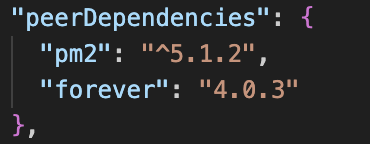
- In
"start"under"scripts", change the storage driver to the "forever" npm package by replacingPM2_DISCRETE_MODE=1 pm2withforever. - In
"stop"under"scripts", change the storage drive to the "forever" npm package by replacingstop deletewithforever stopall.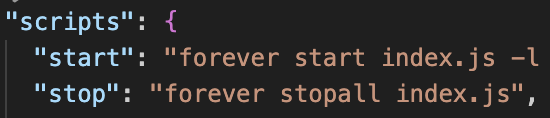
- Rebuild and run the FaceTec Server.
Behavior: FaceTec Server Docker Build Failing with 401 Error
Likely Cause: This may be the symptom of a rare behavior when using Docker Desktop on Windows.
Resolution: If you are using Docker on Windows and receiving a 401 Error, then you may need to remove Docker's configuration file (.docker\config.json) and clear its cache (.docker\buildx folder). This will clear your authentication details, which will force Docker to refresh your login credentials upon logging out and back in. Specifically, these are the commands that should be run:
rm ~/.docker/config.json
rm ~/.docker/buildx
docker logout
docker login -u "USERNAME" # This will prompt the user for a password and then log the user back in.

# Now the user should be able to continue their FaceTec Server setup
docker compose build
...