FaceTec Server Dashboard
Learn about the FaceTec Server Dashboard and how it can be used to view, monitor, and analyze FaceTec Sessions.
Dashboard Walkthrough
Overview
The FaceTec Server Dashboard is a Free Web Application included in the FaceTec Server that can be used for viewing, monitoring, and analyzing FaceTec Sessions. Additional Features, such as Fraud Lists and Account De-duplication, can also be enabled.
The Dashboard displays each FaceTec Session as a row with important Session Details, such as the 3D Liveness Results, Matching Results, and ID Scan Photo Crops. 3D FaceScan Sessions also include an Audit Trail Image to assist with Session Identification (since 3D FaceMaps are encrypted and generated in a Non-Viewable Format).
The FaceTec Server Dashboard is supported on any FaceTec Server Integration that writes to a MongoDB, DocumentDB, or PostgreSQL Database.
Demo Dashboard
Before Getting Started, FaceTec recommends viewing Your Test Sessions on the FaceTec Demo Dashboard. The Demo Dashboard displays Your Test Sessions from the FaceTec Demo and Sample Apps.
Important Note: It is important to note that this data is not from YOUR Production App(s). The data displayed in the Demo Dashboard is from Apps that are using FaceTec's Testing API.
Getting Started
The FaceTec Dashboard is included in the FaceTec Server Package and located in the FaceTec-Dashboard Directory. This directory includes all of the files for configuring and launching the FaceTec Dashboard with Docker.
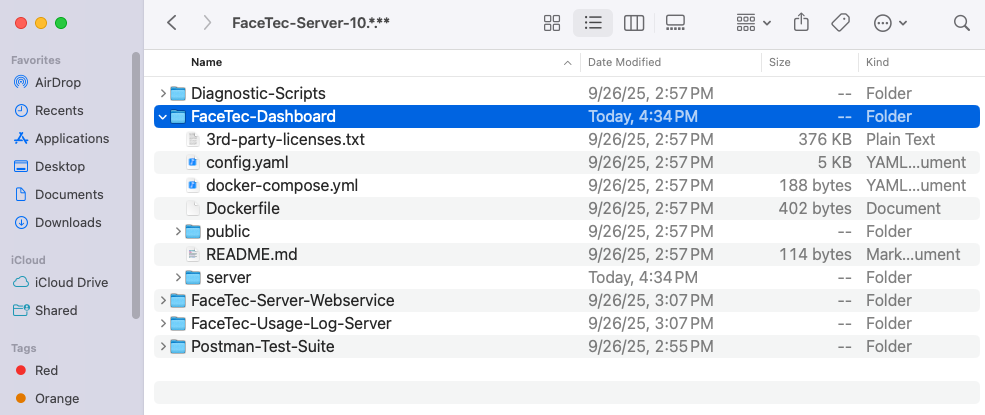
To learn how to integrate and launch the FaceTec Dashboard, please see the Dashboard SDK Initial Integration Guide.
Configure Basic Authentication
Your Team is responsible for securing the FaceTec Dashboard and ensuring that access is limited to the Necessary Individuals. Basic Authentication is one of the mechanisms that Your Team can use to limit access.
Basic Authentication is a mechanism where a Server requests authorization, such as a username and password, from a Client. In addition to limiting access, Basic Authentication also provides an additional layer of security for Your Team's Dashboard Deployment.
To configure Basic Authentication, please see the Dashboard SDK Basic Authentication Guide.
Enable Additional Features
There are several Additional Features that can be enabled, such as the following:
- Adding a User to a Fraud List
- Removing a User from a Fraud List
- Marking a User as a Twin
- Deleting a User's Information
To enable these features, please see the FaceTec Server Dashboard - Enable Additional Features Guide.
FAQ
- How do I run the Dashboard SDK?
- Why are Dashboard Sections disabled?
- How do I access the Dashboard?
- How do I populate the Dashboard Metadata (Device Model, App ID or Domain, etc.) for each item populated?
- How do I populate the IP Address?
- Why are my Dashboard Fields not populating?