Collecting Device Model & Camera Information
Learn how to collect the Device Model Information and External Camera Information (for PCs) of Your Devices.
Android Device Models
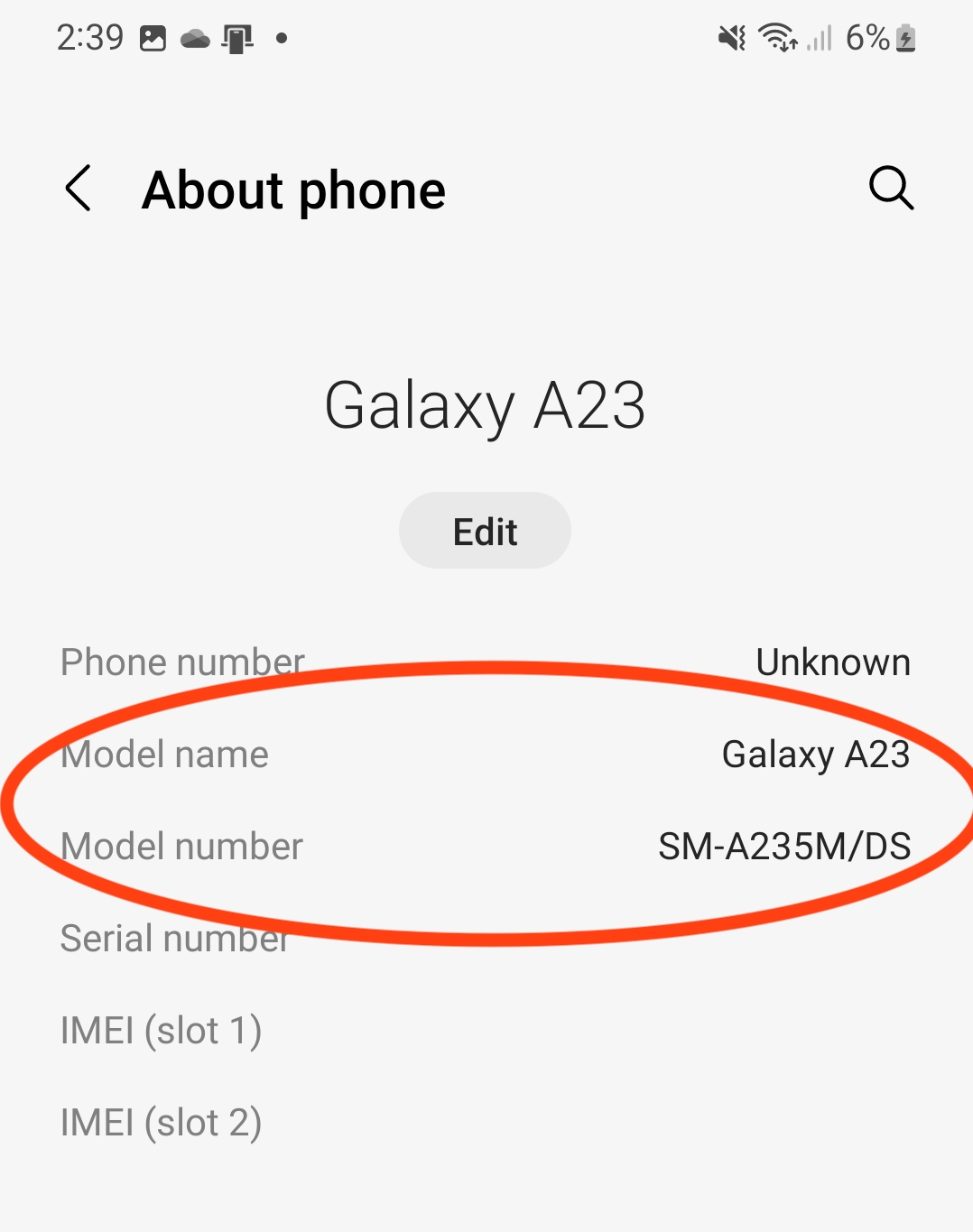
You can find the Device Model Information in the Settings or System Tab of your Android Device.
Android 10 or Higher:
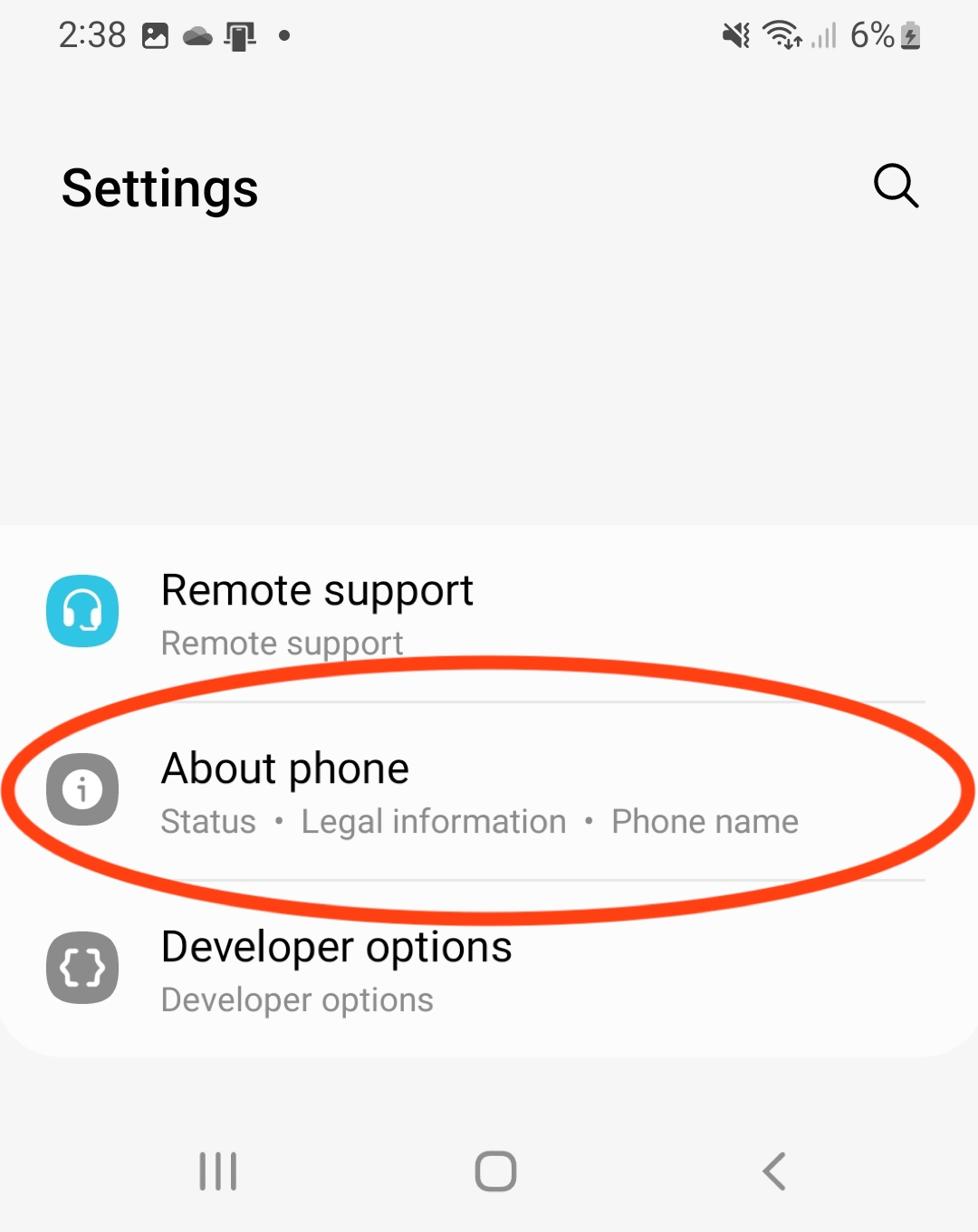
- Go to Settings > About Phone.
- Check Model to see the Model Number.
Android 8 - 9:
- Go to Settings > System > About Phone.
- Check Model to see the Model Number.
Android 7.x or Lower:
- Go to Settings > About Phone.
- Check Model to see the Model Number.
iOS Device Models (iPhones)
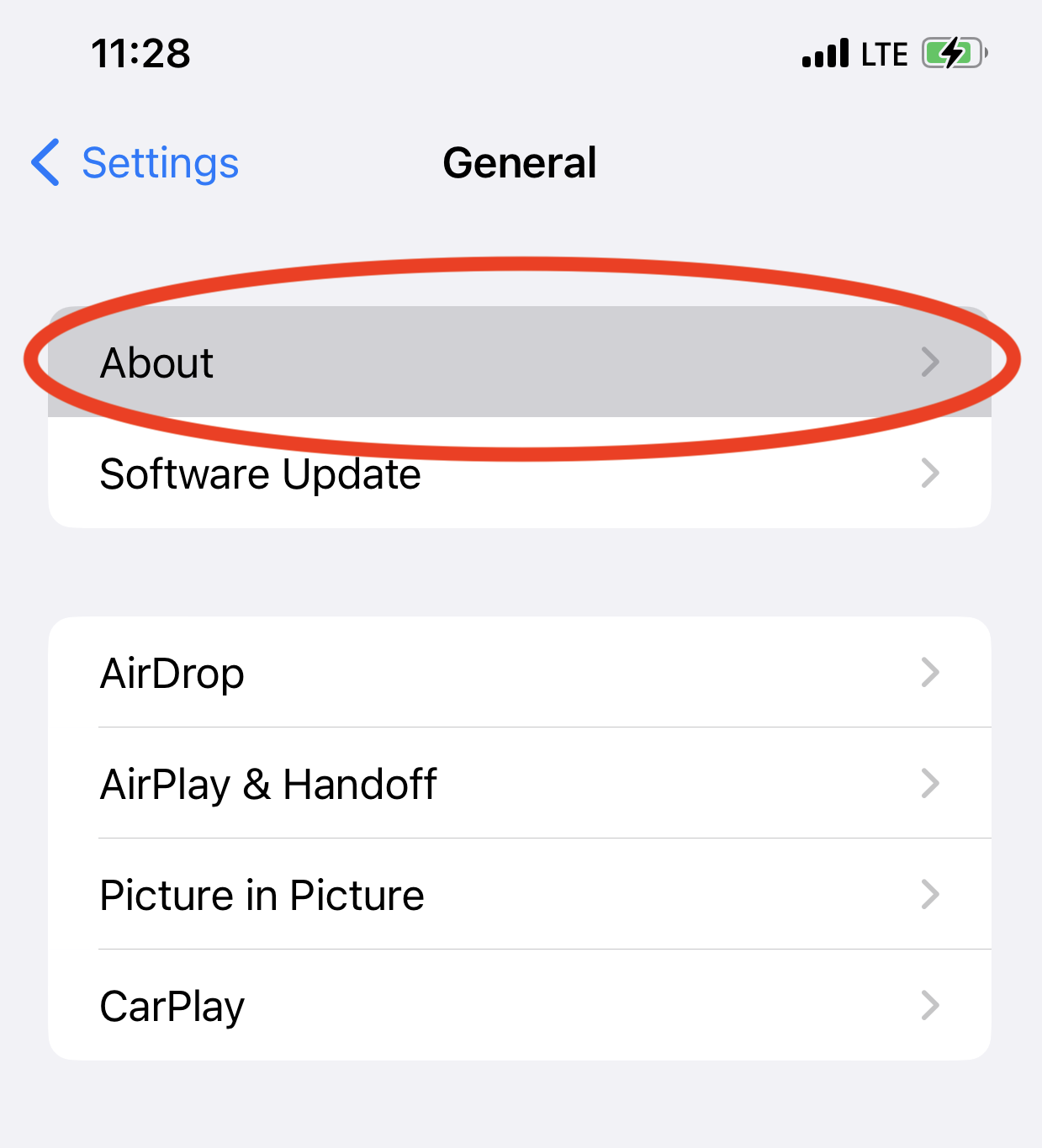
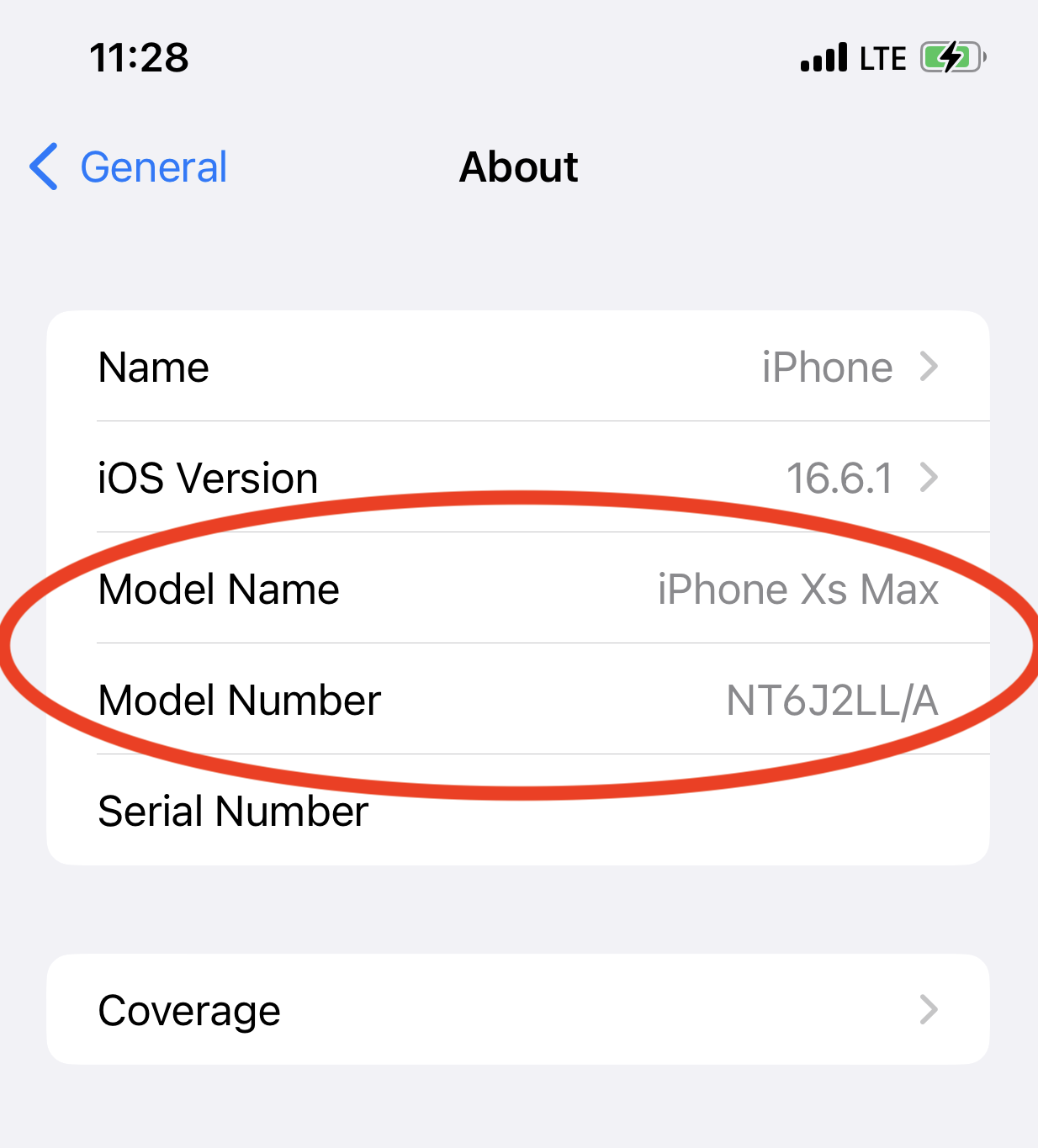
You can find the Device Model Information in the About Tab of your iPhone.
- Go to Settings > General > About.
- Check Model Name and Model Number to get the Device Model Information.
Macbook Device and Camera Information
Device Information:
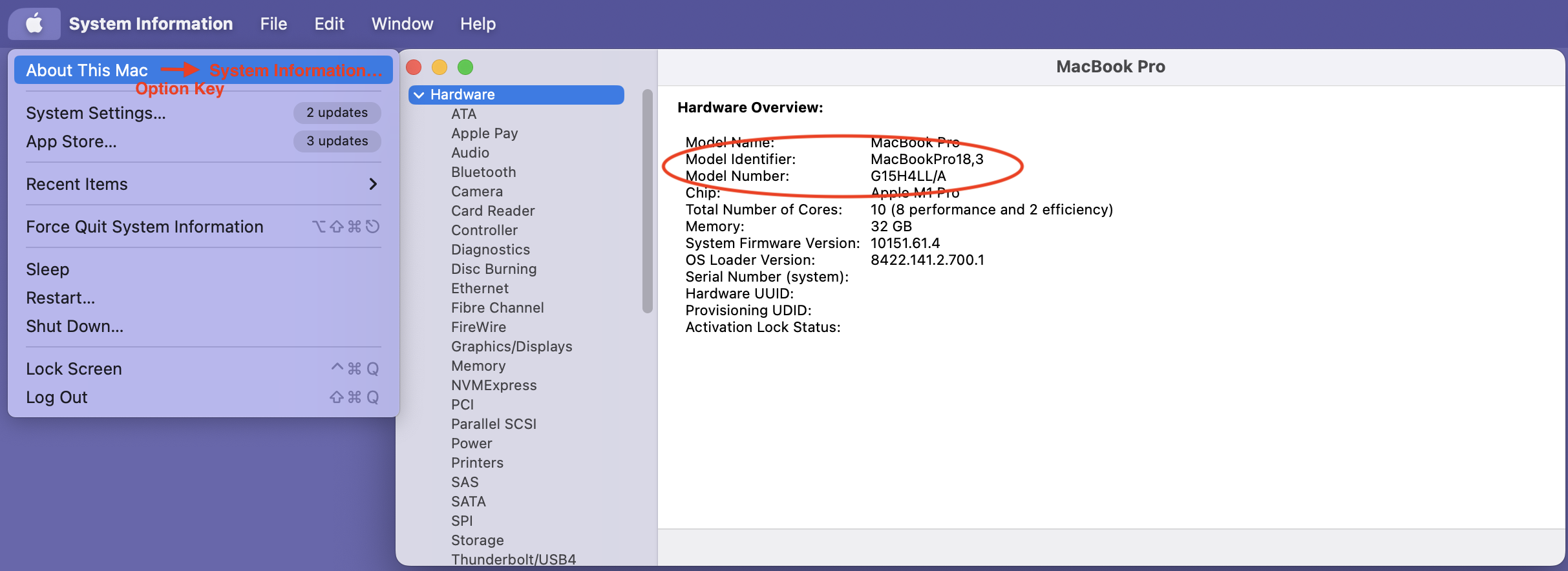
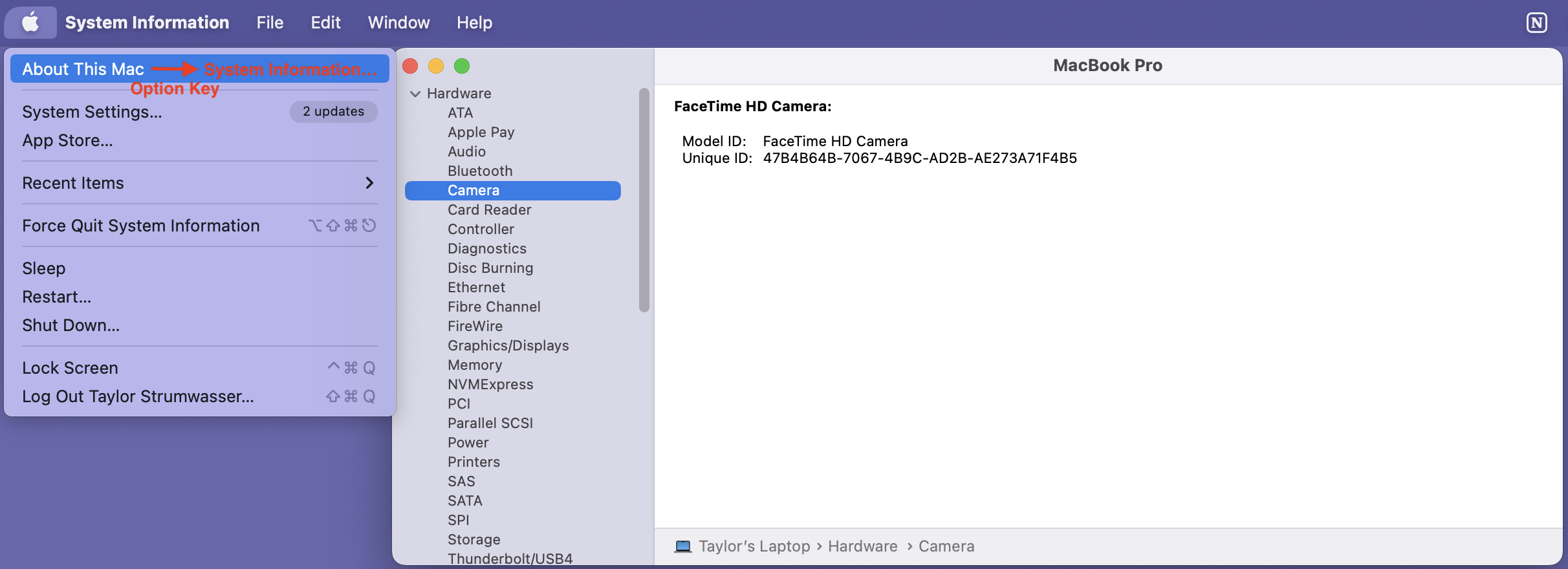
- While holding down the Options Key, click the Apple Logo in the top-left of the screen.
- Go to System Info...
- Check Model Identifier and Model Number to get the Device Information.
Camera Information:
- While holding down the Options Key, click the Apple Logo in the top-left of the screen.
- Go to System Info...
- Click Camera to the see the Camera Information of all connected cameras.
Windows 10/11 Device and Camera Information
Device Information:
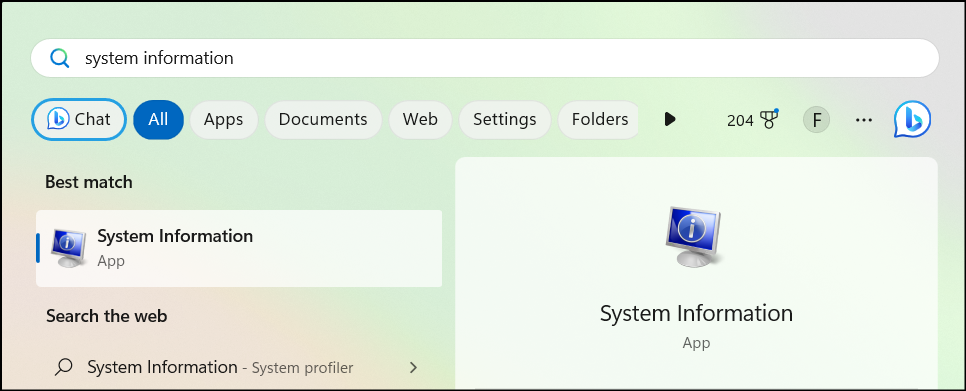
- In the Windows Search Tool, look up system information. A match for System Information should appear.
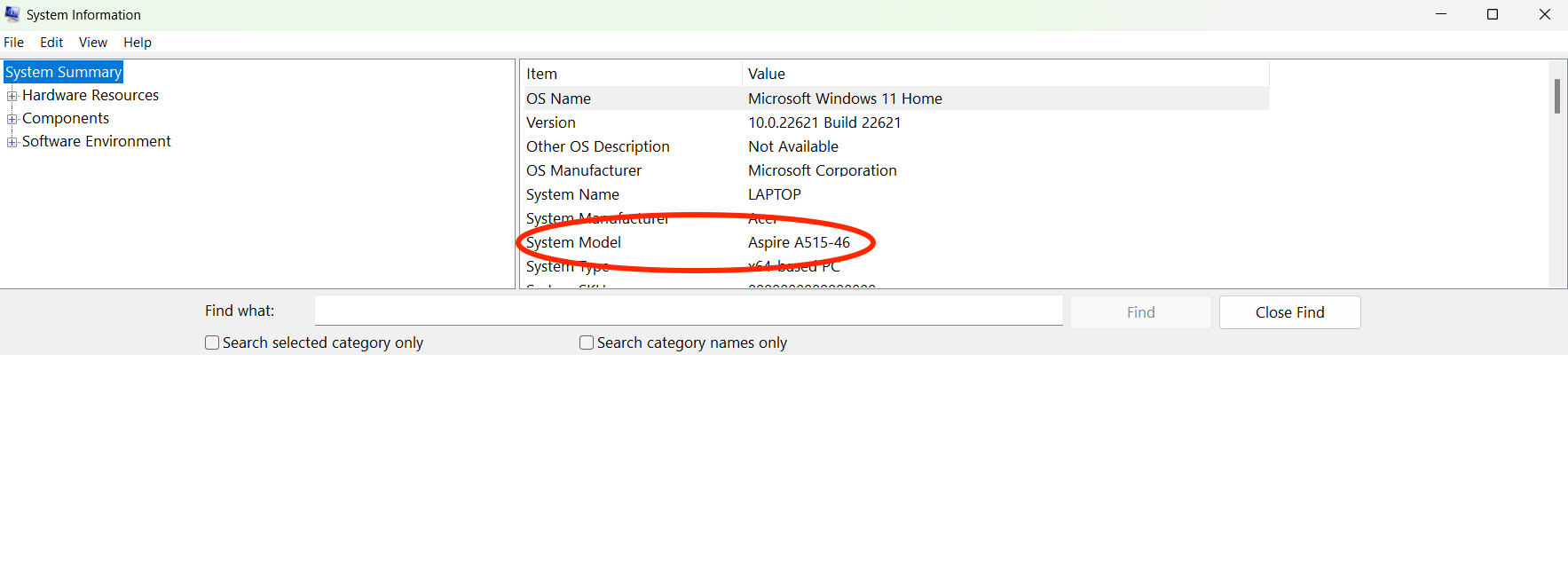
- Click on System Information.
- Check System Model to get the Device Information.
Camera Information:
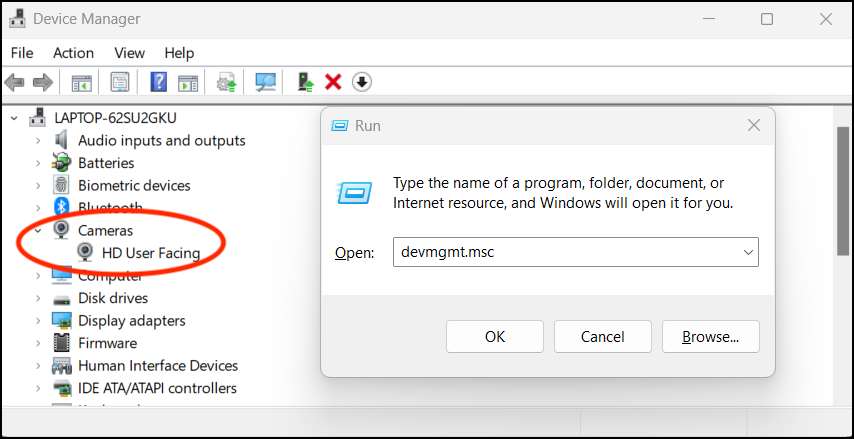
- Press the Windows Key + R.
- Type devmgmt.msc and press OK to open up the Device Manager.
- Click on Cameras to show all of the connected Cameras. Right click on a Specific Camera and press Properties to get more information about the camera.
Linux Device and Camera Information
Important Note: As there are many versions and types of Linux Distributions, the instructions for finding the Device and Camera Information on your device may differ. Please use the method best suited for your environment.
Device and Camera Information:
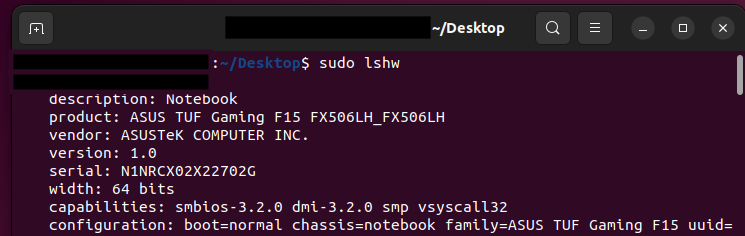
- If not already installed, install the package
lshw. - In the Terminal, run the following command:
sudo lshw. - Important Device Information, like product, vendor, and serial, will be displayed toward the top of the command's output.
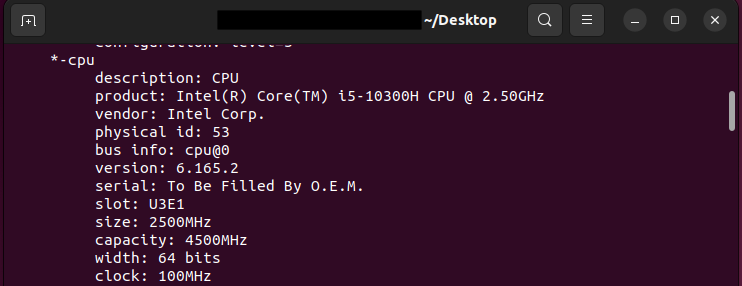
- Important CPU Information will be displayed further down in the command's output underneath *-cpu.
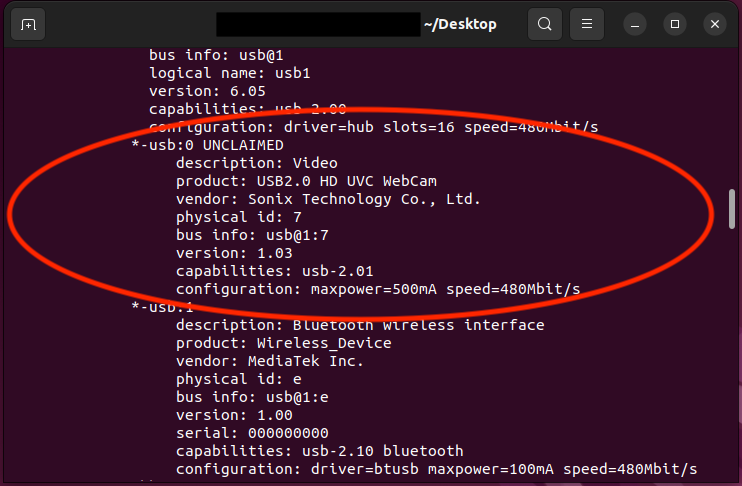
- If there is a Built-In Webcam or USB-Connected Camera, then the Camera Information can be found in the *-usb sections of the command's output.