Integrating FaceTec via a Content Delivery Network (CDN)
Learn how to use a Content Delivery Network (CDN) to load the FaceTec Browser SDK into Your Own SDK.
Video Walkthrough (Amazon CloudFront Distribution)
- Download the Browser SDK.
- Install & Start the Browser SDK.
- Create a S3 Bucket.
- Create a CloudFront Distribution.
- Upload the Browser SDK Files.
- Perform a 3D FaceScan.
Download the FaceTec CDN Starter Code Example
For those loading the FaceTec SDK from a CDN, please download the FaceTec CDN Starter Code Example. There are three main components to the Starter Code Example:
- A Simple Server for running the Browser App.
- A basic SDK Provider Package that loads the FaceTec Browser SDK from a CDN and provides an API for a Customer App.
- A basic Customer App that loads the SDK Provider Package and performs a liveness check when the Liveness Check Button is pressed.
Running the Starter Code Example with AWS S3
We recommend first running the Starter Code Example with an AWS S3 bucket as your CDN. After having confirmed it works, you are ready to integrate the Starter Code Example with your actual CDN and your own SDK.
Create an S3 Bucket
To create an S3 Bucket, go to S3 and press the "Create bucket" button in your Amazon Web Services account. In the "Permissions" Tab, configure CORS (Cross-Origin Resource Sharing) to have your desired settings. Use the example configuration below to confirm that the Starter Code Example is working:
Important Note: This example configuration should only be used to confirm that the Starter Code Example is working. You will still need to evaluate the security of your S3 bucket and determine the proper CORS configuration to use in your actual production environment.
[
    {
        "AllowedHeaders": [
            "*"
        ],
        "AllowedMethods": [
            "GET"
        ],
        "AllowedOrigins": [
            "*"
        ],
        "ExposeHeaders": [],
        "MaxAgeSeconds": 3000
    }
]
After you have finished configuring CORS, download the Browser SDK and upload the core-sdk folder to the root of your S3 bucket.
Make an S3 Bucket into a CDN
In AWS, go to CloudFront and press the "Create Distribution" button. Set the Origin Domain to your S3 Bucket and use the Origin Access Control Settings (the recommended settings). You can use the configuration below in the "Behavior" tab to verify that the Starter Code Example is working:
Important Note: This example configuration should only be used to verify that the Starter Code Example is working. You will still need to evaluate the security of your CDN and determine the proper "Behavior tab" configuration to use in your actual production environment.
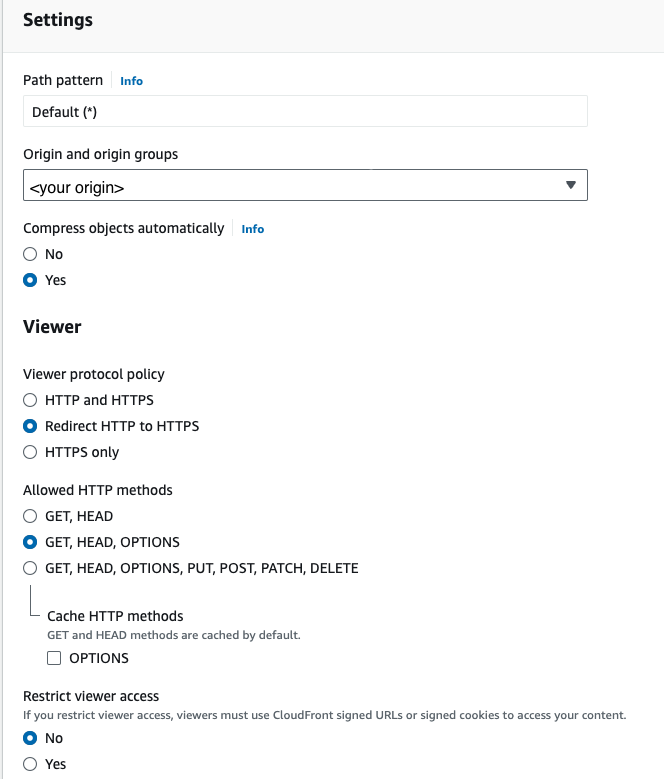
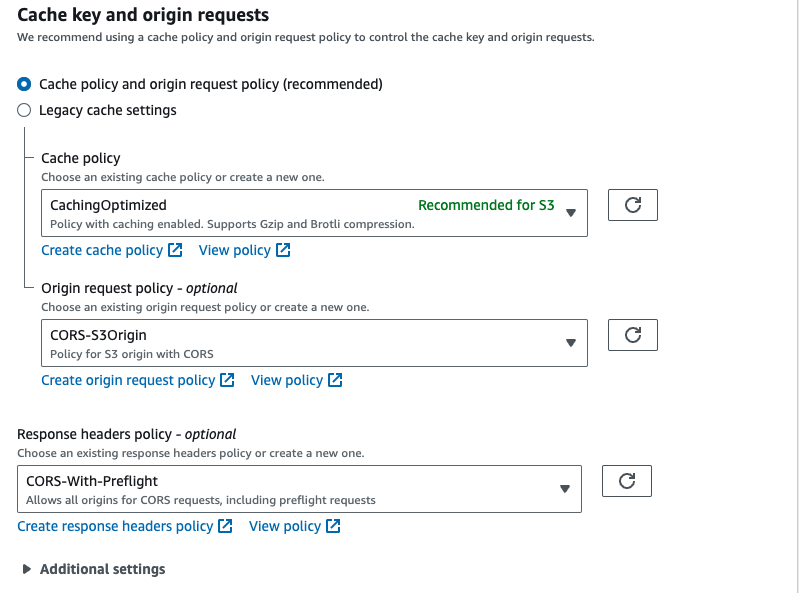
When you are finished, copy the policy and paste it into the "Policy" Section of your S3 Bucket.
Run the Starter Code Example
Now that you have finished configuring your CDN, you can perform the following steps to run the Starter Code Example:
- Open a terminal in the root of the Starter Code Example.
- Update the
FACETEC_BROWSER_SDK_CDN_URLin YourSDKpackage.ts to point to the location of core-sdk in your CDN.
Important Note: This URL can be found under Distribution Domain Name in your Distribution's "General" Tab. To point to core-sdk, append /core-sdk to the end of the URL. - Add your
deviceKeyIdentifierto the Config.js file in the SDKProvider folder. - Run
npm run start. This should open a Browser Window once finished. - In the Browser Window, press the "3D Liveness Check" Button.
- If successful, you will be able to perform and pass a Liveness Check.