Text & Language Editing
Learn how to localize the FaceTec SDK and customize text in the FaceTec Interface.
Introduction
Developers can customize and localize text from any screen in the FaceTec Interface.
Each Device SDK contains a Strings File that can be used as a baseline for customizing the default strings in the app. The Strings File can also be duplicated and conditionally deployed for different locales and languages. The FaceTec Strings file in each Device SDK lists all of the strings that can be customized.
For example, to modify the I'm Ready Button Text on the Guidance Screens, search for the string name "FaceTec_action_im_ready" and insert your customized message.
// Custom text for continue button
"FaceTec_action_im_ready" = "Custom Continue Message";
FaceTec's Default Languages
The FaceTec SDK includes support for 14 different languages:
- Afrikaans (af)
- Arabic (ar)
- Chinese (zh)
- English (en)
- French (fr)
- German (de)
- Greek (el)
- Japanese (ja)
- Kazakh (kk)
- Norwegian (no)
- Portuguese (pt-rBR)
- Russian (ru)
- Spanish (es)
- Vietnamese (vi)
To use a language other than one of the 14 listed above, you will need to create a copy of the Strings file and update each of the phrases manually.
Android Localization & String Customization
Static Localization & String Customization
For Android, FaceTec supports localization through standard System Settings. To localize your App and customize strings, you need to add the specific string resource files with your translated values and allow the FaceTec SDK to be presented to the Users in their desired system locale.
FaceTec's default set of string resource files can be found in the root directory of the FaceTec Android SDK. To use these resource files in the FaceTec Android SDK Sample App, you will need to perform the following steps:
- In Android Studio, open up the FaceTec Android SDK Sample App.
- Copy the FaceTec Strings XML file for the language you are localizing to (e.g. strings-fr.xml for French).
- Add the FaceTec Strings XML file to res/values.

- To customize these strings further, replace the phrase in between the <string> tags with your custom phrase.
- On your Android Test Device, change the Device Language to the appropriate language.
- On success, you will be able to run the App on your Android Test Device and see the locale-dependent string customizations.
Important Note: You might notice that certain strings in the Android Sample App, like the Result Screen Message, are still in English. This is since these strings have been dynamically customized. To learn how to use dynamic string customization, see Android - Dynamic Localization & String Customization.
Overriding System Localization Settings
Instead of changing the Android Device's default language, you can also override the system localization settings programmatically.
Warning! This process overrides the User's locale and can create inconsistencies. For more information and best practices, refer to the official Android documentation on Locale and Configuration.
After setting up the appropriate localization String XML files, retrieve the base application's configuration and call setLocale with a valid Language ID as an argument. Next, update the current configuration and refresh the application to reflect the new locale.
The below example shows how to set your application's locale to French:
// Override application language with the selected locale
Locale locale = new Locale("fr");
Configuration config = getBaseContext().getResources().getConfiguration();
config.setLocale(locale);

// Update current activity's configuration
getBaseContext().getResources().updateConfiguration(config, getBaseContext().getResources().getDisplayMetrics());

// Update application's configuration so the FaceTec SDK will be updated
getApplicationContext().getResources().updateConfiguration(config, getBaseContext().getResources().getDisplayMetrics());
Dynamic Localization & String Customization
FaceTecSDK.setDynamicStrings() can be used to dynamically update the FaceTec Strings.
Example:
HashMap<Integer, String> localizedStringMap = new HashMap<>();
// Add all FaceTec string resource values
// ...
localizedStringMap.put(R.string.FaceTec_action_ok, "OK"); // Example
localizedStringMap.put(R.string.FaceTec_action_im_ready, "I'm Ready"); // Example
// ...
// Apply localizations to SDK before Session
FaceTecSDK.setDynamicStrings(localizedStringMap);
Warning! This API will explicitly override all static localization files and language device settings. As a result, ALL FaceTec Strings must be defined and set when using setDynamicStrings().Android TalkBack Accessibility
Android supports customization of Android TalkBack accessibility strings for the FaceTec UI elements. In the FaceTec SDK Sample Apps, please search for "FaceTec_accessibility" to find these strings and update with any customizations. Here is an example string for the FaceTec Cancel Button:
<string name="FaceTec_accessibility_cancel_button">Cancel</string>iOS Localization & String Customization
Like Android, FaceTec also supports localization for iOS through standard System Settings. However, the steps for using the string resource files differs from those used for the FaceTec Android SDK.
Static Localization & String Customization
FaceTec's default set of String Localization Files can be found in the root directory of the FaceTec iOS SDK. Each of the right-side strings in the String File can be customized. After you have made your changes to these strings, you can use this String File to override the default FaceTec Strings.
Important Note: You should use the FaceTec String Files in the Release Package, not the FaceTec String Files in the FaceTecSDK.framework.

To customize strings and create locale-dependent String Files in the FaceTec iOS SDK Sample App, you will need to perform the following steps:
- In Xcode, open up the FaceTec SDK Sample App.
- Copy the FaceTec.strings file and move it into the top level of the FaceTec SDK Sample App (the same folder level as FaceTec_OCR_Customization).
- Click the FaceTec.strings file and in the right-most panel, click the Show the File Inspector Icon. Then, press Localize....
- Click FaceTecSDK-Sample-App and go to FaceTec-SDK-Sample in Project. In the Info Tab, press the + icon under Localizations and choose the language to localize to.
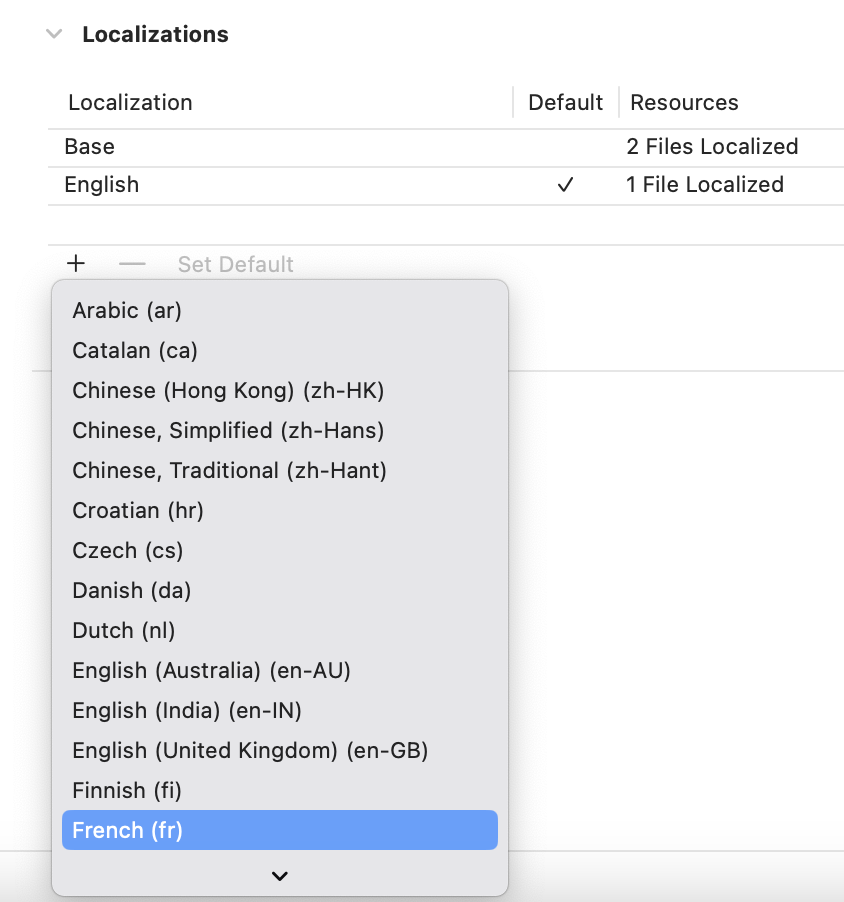
- Check FaceTec.strings, uncheck LaunchScreen.storyboard and main.storyboard, and click Finish.

- In the leftmost panel, the FaceTec Strings file should now have an English and
Version. - Copy the contents of the corresponding String Localization File into the FaceTec Strings (
) file. - On your iOS Test Device, go to Settings > General > Language & Region and change the Device Language to the appropriate language.
- On success, you will be able to run the app on your iOS Test Device and see the localized string customizations.
Important Note: You might notice that certain strings in the iOS Sample App, like the Result Screen Message, are still in English. This is since these strings have been dynamically customized. To learn how to use dynamic string customization, see iOS - Dynamic Localization & String Customization.
Static Localization & String Customization (Alternative Method)
Optionally, you may specify a different string table and bundle instance to search in. If you would like to do this, use the configureLocalization(withTable, bundle) function, as demonstrated below:
// Configure where the FaceTec SDK looks for custom localized strings.
// @param - table - (Optional) Name of the string table to look in.  By default, this is "FaceTec" and string will be read from FaceTec.strings
// @param - bundle - (Optional) NSBundle instance to search for FaceTec string definitions in.  This will be searched after the main bundle and before FaceTec's default strings
FaceTec.sdk.configureLocalization(withTable: table, bundle: bundle)
Overriding System Localization Settings
Instead of changing the iOS Device's default language, you can also override the system localization settings programmatically.
Warning! This process overrides the User's locale and can create inconsistencies. For more information and best practices, refer to the official Apple documentation on Language and Locale IDs.
The setLanguage function gives you the ability to override the User's preferences with a specific locale. To use it, call the setLanguage function with a valid Language ID as argument. For example, to set your application's locale to French:
// Override application language with the selected locale
FaceTec.sdk.setLanguage("fr")
For a list of valid Locale IDs and how to use language and region designators appropriately, please see the official Apple documentation here.
Dynamic Localization & String Customization
FaceTec.sdk.setDynamicStrings() can be used to dynamically update the FaceTec Strings.
Example:
// Apply localizations to SDK before Session
FaceTec.sdk.setDynamicStrings([
    // Add all FaceTec string resource values
    // ...
    "FaceTec_action_ok": "OK", // Example
    "FaceTec_action_im_ready": "I'm Ready" // Example
    // ...
])
Warning! This API will explicitly override all static localization files, string tables, and language device settings. As a result, ALL FaceTec Strings must be defined and set when using setDynamicStrings().Browser Localization
Static Localization & String Customization
FaceTec's default set of String Localization Files can be found in the core-sdk-optional directory. Each of the right-side values in the String File are strings that can be customized. After you have made your changes to these strings, you can use this String File to override the default FaceTec Strings. To statically override the default FaceTec Strings, you must perform the following two steps:
- Ensure Initialization is complete.
- Call
FaceTecSDK.configureLocalization()with the set of string customizations as an argument. Only the string customizations specified in this set will be used for Static Localization.
Important Note: You might notice that certain strings in the Browser Sample App, like the Result Screen Message, are still in English. This is since these strings have been dynamically customized. To learn how to use dynamic string customization, see Browser - Dynamic Localization & String Customization.
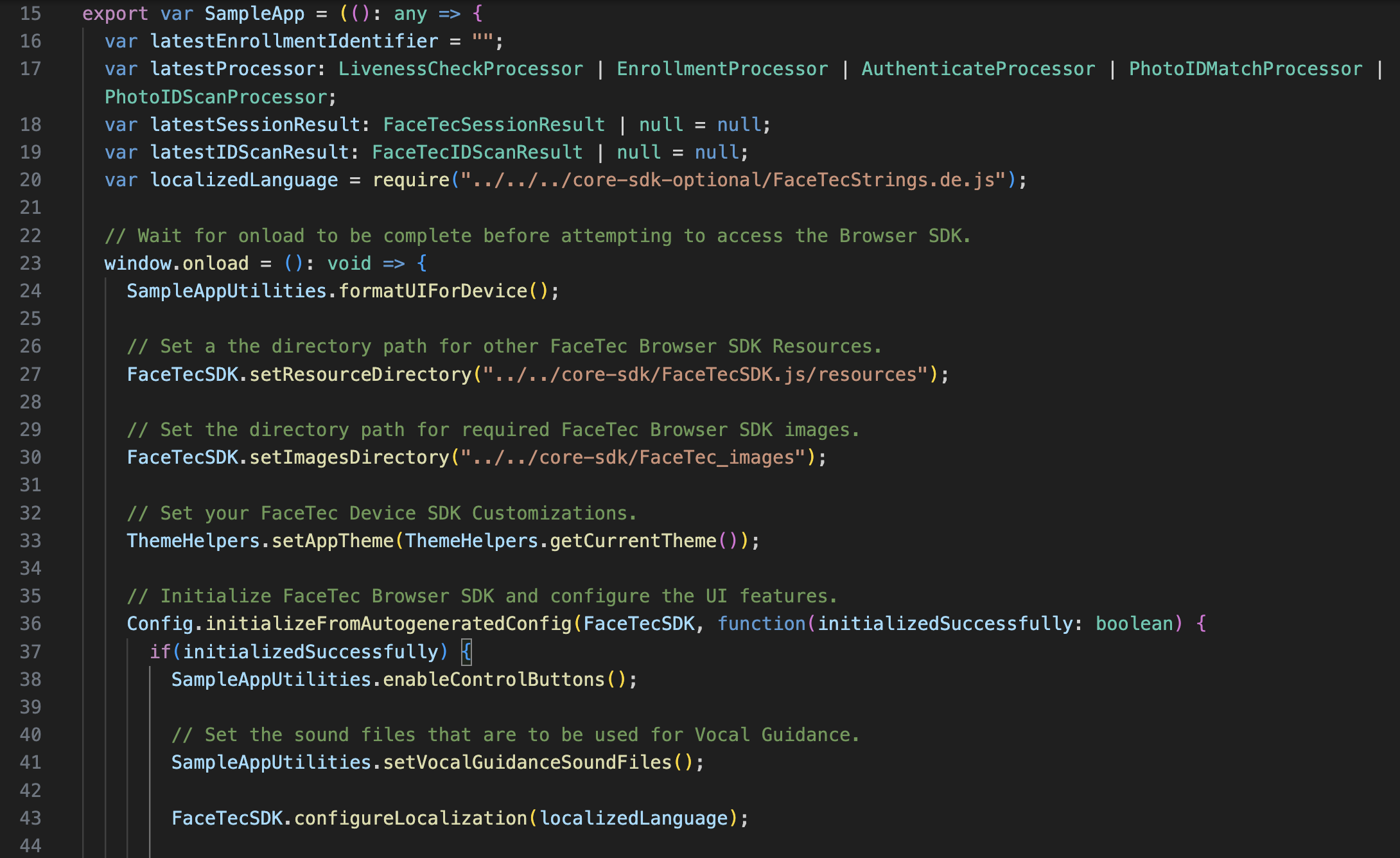
In the FaceTec Browser SDK Sample App, the default FaceTec Strings can be localized to German by adding lines 20 and 43 in sampleAppController.ts, as shown below:
Please Note:
configureLocalization()MUST BE called afterinitializeInDevelopmentMode()orinitializeInProductionMode().
Dynamic Localization & String Customization
FaceTecSDK.configureLocalization() can be used to dynamically update the FaceTec Strings.
Example:
// Apply localizations to SDK before Session
FaceTecSDK.configureLocalization({
  // Add all FaceTec string resource values
  // ...
  "FaceTec_action_ok": "OK", // Example
  "FaceTec_action_im_ready": "I'm Ready" // Example
  // ...
});
Warning! This API will explicitly override all static localization files. As a result, ALL FaceTec Strings must be defined and set when using configureLocalization().