FaceTec's Official ID Photo Output Feature (Beta)
Perform 3D Liveness Checks and generate High-Quality Images from Successful 3D Liveness Sessions that can be used on Official Documents, such as Passports and Driver Licenses.
Overview
FaceTec’s Official ID Photo Feature has configurable options to ensure images conform to one of several prominent Photo ID Documentation Standards, such as the ICAO 9303 Standard.
If 3D Liveness was Proven and all Image Validation Checks pass, then FaceTec’s Official ID Photo Feature will return a Photo ID Face Image with a Plain Background. If either 3D Liveness cannot be proven or a Validation Check fails, then the User will be sent to a configurable User Help Screen.
More information can be found here: FaceTec_Official_Photo_ID_Image_Output_Feature.pdf
Getting Started
To use the Official ID Photo Feature, FaceTec must first approve access. You can request access to this feature by Sending a Support Request to FaceTec.
Image Validation Checks
The Validation Checks that are used in the Official ID Photo Feature can be specified with officialIDPhotoQualityValidationChecksEnabled in the FaceTec Server Webservice's config.yaml file. All Checks can be turned on or off via configuration.
The table below lists the Success Criteria and Default Enforcement Behavior for each Validation Check:
| Property | Description |
|---|---|
| BLUR** | Another User Face Scan is needed when FaceTec detects a high likelihood that the User Scan was blurred. |
| EYES_CLOSED | Another User Face Scan is needed when FaceTec detects a high likelihood that the User's eyes were closed during the Scan. |
| GLARE_IN_GLASSES** | Another User Face Scan is needed when FaceTec detects a high likelihood that the User's glasses contained glare during the Scan. |
| GLASSES | Another User Face Scan is needed when FaceTec detects a high likelihood that the User was wearing glasses during the Scan. |
| SUNGLASSES | Another User Face Scan is needed when FaceTec detects a high likelihood that the User was wearing sunglasses during the Scan. |
| FOGGY_IMAGE** | Another User Face Scan is needed when FaceTec detects a high likelihood that the User's camera was generally foggy during the Scan. |
| NON_NEUTRAL_EXPRESSION** | Another User Face Scan is needed when FaceTec detects a high likelihood that the User's expression was non-neutral during the Scan. |
| INSUFFICIENT_LIGHTING** | Another User Face Scan is needed when FaceTec detects a high likelihood that the User's was in an environment with insufficient lighting during the Scan. |
| EXCESSIVE_BRIGHTNESS** | Another User Face Scan is needed when FaceTec detects a high likelihood that the User's was in an environment with excessively bright lighting during the Scan. |
| HAIR_OR_OTHER_OCCLUSION** | Another User Face Scan is needed when FaceTec detects a high likelihood that the User had hair or similar-looking occlusions covering a significant portion of the User's face during the Scan. |
| GLARE** | Another User Face Scan is needed when FaceTec detects a high likelihood that the User's Scan was performed in an environment that produced a glare over the User's face during the Scan. |
| SHADOWS** | Another User Face Scan is needed when FaceTec detects a high likelihood that the User's Scan was performed in an environment that produced shadows over the User's face during the Scan. |
| UNEVEN_FACE_LIGHTING** | Another User Face Scan is needed when FaceTec detects a high likelihood that the User's Scan was performed in an environment that produced uneven lighting over the User's face during the Scan. |
| NON_IDEAL_HEAD_POSE** | Another User Face Scan is needed when FaceTec detects a high likelihood that the User's head pose was not frontal during the Scan. |
| HEAD_COVERINGS** | Another User Face Scan is needed when FaceTec detects a high likelihood that the User's wore head coverings during the Scan. |
| HEADPHONES | Another User Face Scan is needed when FaceTec detects a high likelihood that the User's wore headphones coverings during the Scan. |
| HANDS_OCCLUSIONS | Another User Face Scan is needed when FaceTec detects a high likelihood that the User had a hand covering a significant portion of the User's face during the Scan. |
| GLASSES_FOREHEAD | Another User Face Scan is needed when FaceTec detects a high likelihood that the User's had glasses on their forehead during the Scan. |
| NON_IDEAL_EYE_GAZE** | Another User Face Scan is needed when FaceTec detects a high likelihood that the User's had non-frontal eye gaze during the Scan. |
| FACE_OCCLUSION** | Another User Face Scan is needed when FaceTec detects a high likelihood that the User had any object covering a significant portion of the User's face during the Scan. |
Please Note: Checks denoted with a (**) above means that a “Strict” version of this Check is available. When using the Strict version of the Check, FaceTec will be more likely to require the User to perform another Scan to provide additional data in order to produce a higher quality image that does not contain the data quality aspect related to the Check. Using the Strict version of a Check will generally require the User to perform additional Scans, but will lead to a higher likelihood of a more ideal image.
Image Background Color
By default, the Image Background Color is set to Beige (RGB: 244, 234, 213). The Image Background Color can also be customized by using officialIDPhotoBackgroundRGBColor in the FaceTec Server Webservice's config.yaml file, which specifies the color as a three-element array of [0-255] RGB Values.
User Help Screen (Retry Screen)
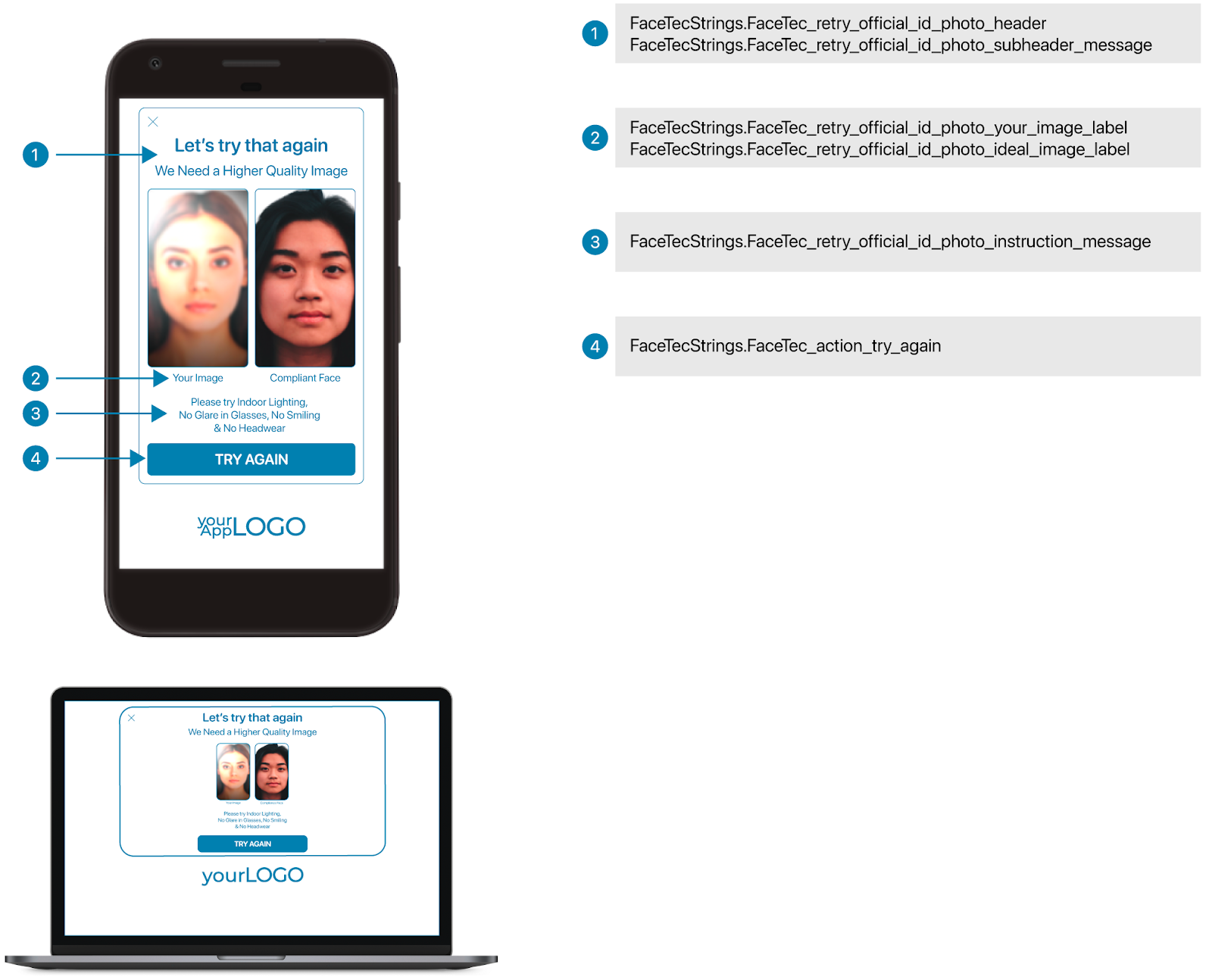
The User Help Screen (Retry Screen) is shown when either 3D Liveness cannot be proven or one of the Validation Checks fails. The Strings for the User Help Screen can be customized in the In the FaceTec Strings File.
Glasses and Head Coverings Behavior
Glasses Behavior
Rejections for the Detection of Glasses can be enabled, but many standards allow for Subjects to wear Glasses as long as there is no Significant Glare in the Glasses detected. Rejection due to the subject wearing glasses is off by default.
Head Coverings Behavior (Hat, Scarves, etc.)
This check is enabled by default and results in a Rejection if a Head Covering is detected (e.g. Hat, Cap, Hijab, Scarf, Bandana, Head Wrap, Beanie, Hood, etc.). Some Identity Issuers do make exceptions for “Religious Head Coverings” in Official ID Photos. If Your App needs to make exceptions for “Religious Head Coverings”, then you will need to build a Logic Flow outside of the FaceTec UI to determine whether a Particular User should be given an exception. If an exception should be made, then Your System should make a call to a separate FaceTec Server Instance that allows Head Coverings. This separate FaceTec Server Instance can be a Separate Machine/VM altogether, or it can be a separate FaceTecSDKInstance that is configured in Your FaceTec Server Code to use a different set of Official ID Photo Validation Check Settings.